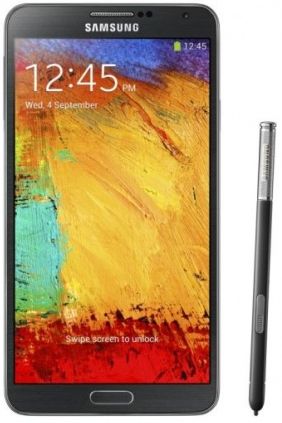
 Among the new features in Galaxy Note 3, Air Command probably is the most impressive one. Our beloved S Pen gets a new life in the Note 3.
When you hover the S Pen over the screen and then press the button on the S-Pen, you will immediately get a palette-like menu with five available actions. The Air Command works like a context menu in most systems.
There are five available actions (or quick commands) in Air Command: Action Memo, Scrapbook, Screen Write, S Finder, Pen Window.
Although Air Command may have many usages, you may find that it makes note-taking extremely easy, quick and enjoyable.
Action Memo
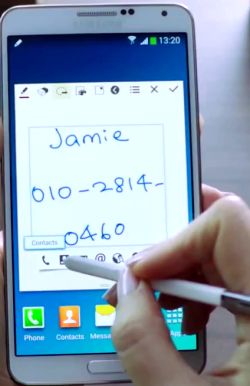 Action Memo allows you to write a note in your Note 3. Yes, this is not new. We got this feature since Note 1. What makes Action Memo differ from our old memos is that it can automatically execute a function or convert the handwritten documents or drawings into formatted content.
The functions that Action Memo can execute include:
- initiating a call with the number or name in the memo;
- adding to contacts based on the number and name written in the memo;
- messaging the number or the name written;
- sending email to the email address written in the memo;
- looking up an address on Google Maps with the address in the memo;
- searching the web;
- saving a task to a to-do list;
Action Memo simply hooks the static info in the memo with some possible operations. Now you memo is alive!
Scrapbook
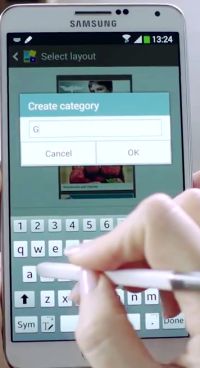 Scrapbook allows users to collect, organize, and track content and information from all sources in one place (Scrapbook).
The contents in the Scrapbook are organized as categories, which are created by you. When you want to save content or info, you can select any existing category or create a new one.
You can scrape part of a web page into your Scrapbook by drawing the area you want to save with the S Pen in Scrapbook mode. The content in your drawing area (based on the top and bottom location of your drawing) will be saved, together with … Read the full post

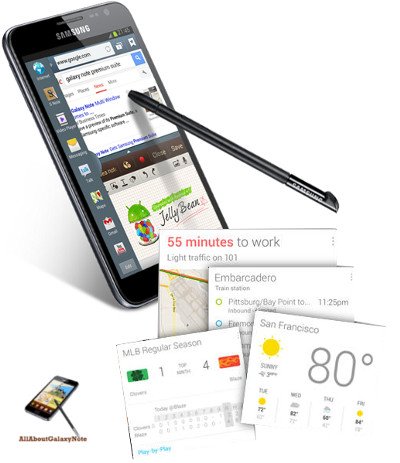
 This is our second S Note video tutorial. In this tutorial,we will learn how to change the appearance or typesetting of your text in S Note. This includes font type, text size, text decoration, paragraph spacing, paragraph alignment, paragraph indent, pre-defined styles, and list styles.
 Pop up play was debuted on Galaxy S3 last May. In the Googl Play store, there are a few paid apps (e.g., Stick it! (Pop-up Player)) doing the similar job. What it does is quite simple, you can watch your video and use other apps at the same time. The video will be re-sized as thumbnail and you can move it to any locations on your screen. Pretty cool, right?
 Update: although the post was initially written for Galaxy Note with ICS, the method actually works for Galaxy Note 2, Galaxy Note 3 and many other Android devices with different versions of Android.
 Yes,
Yes, Why does Samsung (and all other licensed Android hardware manufactures) have to release the source code to the public? This is simply the obligation of using Android, because Android is using
 Yes, about
 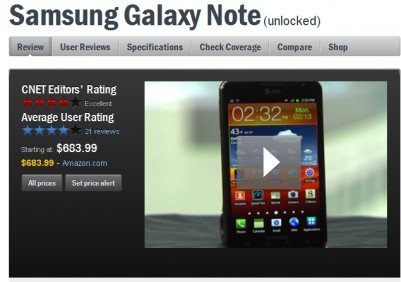 Galaxy Note got a quite good review on performance, phone quality, 4G LTE connectivity, 5.3″ display, and the camera. The editor’s major concerns are: 1). the S pen is too small and 2). the size of this device may be awkwardly large for some people to fit into pocket.
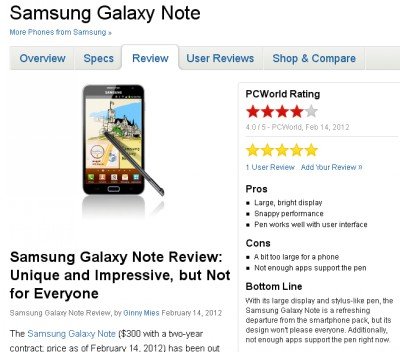 The review is quite positive. The reviewer dived into some aspects that other reviewers overlooked, e.g., Samsung’s TouchWiz UI, S Memo. The reviewer’s major concern is the lack of apps for S Pen. Spot on. The conclusion is unique and impressive, but not for everyone.