• Skip to primary navigation
  • Skip to main content
  • Skip to primary sidebar
  • Skip to footer

Galaxy Note Tips & Tricks

  • Note 10
    • Official Samsung Galaxy Note 10 User Manual
    • Unbox Galaxy Note 10: What are included in Galaxy Note 10 Box?
      • How to use the new Galaxy Note 10 S Pen?
      • How to use Galaxy Note 10 Clear View cover (S View cover)?
      • Install S Note app and Extension pack on Galaxy Note 10
      • Galaxy Note 10 LED View Cover Guide and Review
      • How to use the Dynamic Lock screen on Galaxy Note 10?
    • How to charge Galaxy Note 10 battery?
    • How to use Samsung DeX for PC with Galaxy Note 10 and Galaxy Note 10+?
    • Galaxy Note 10 SIM Card Guide
    • How to Use Galaxy Note 10 Camera App?
    • Galaxy Note 10 Layout
      • Where is the Galaxy Note 10 zoom-in mic?
      • How to use and remap Galaxy Note 10 Side key?
    • Galaxy Note 10 review: the death of Galaxy Note
      • Top 10 new features of Galaxy Note 10 and Note 10+ you should try
      • Top 10 missing features of Galaxy Note 10 and Note 10+ you should know before buying
      • Galaxy Note 10 vs Galaxy Note 10+: what are the differences?
  • Note 9
    • Top 9 new features of Galaxy Note 9
    • Official Samsung Galaxy Note 9 user manual
    • How to use Galaxy Note 9 S Pen?
      • How to use S Pen remote control on Galaxy Note 9?
      • How to change Galaxy Note 9 S Pen nib?
  • Note 8
    • Official Samsung Galaxy Note 8 User Manual
    • Top 8 new features of Galaxy Note 8
  • Note 7
    • Samsung Galaxy Note 7 User Manual
    • Galaxy Note 7 Layout
    • Samsung Galaxy Note 7 Specifications
    • Charge Galaxy Note 7 battery
    • Galaxy Note 7 SIM card guide
    • How to disable Galaxy Note 7 Flipboard briefing?
    • How to access and use Galaxy Note 7 notification panel?
    • How to manage and use Galaxy Note 7 quick setting buttons?
    • Galaxy Note 7 home screen guide
      • App folders in Galaxy Note 7 home screen
      • Add, use and manage apps in Galaxy Note 7 home screen
      • Use Galaxy Note 7 screen grid to customize app icon size
    • Meaning of Galaxy Note 7 indicator icons in status bar
  • Note 5
    • Top 12 new features in Galaxy Note 5 Android Nougat udpate
    • Official Samsung Galaxy Note 5 user manuals with Android Nougat update
    • How to take screenshot on Galaxy Note 5 without using any apps?
    • Galaxy Note 5 layout
    • Galaxy Note 5 SIM card guide
    • Charge Galaxy Note 5 battery
    • Everything about Galaxy Note 5 S Pen
    • How to use Galaxy Note 5 screen off memo?
    • Galaxy Note 5 touch screen gestures
    • Galaxy Note 5 home screen
    • How to disable flipboard briefing on Galaxy Note 5?
    • How to use Galaxy Note 5 apps screen?
    • How to use Galaxy Note 5 lock screen?
    • How to use app folders on Galaxy Note 5 home screen?
    • How to use Galaxy Note 5 notification panel?
    • Meaning of Galaxy Note 5 status icons and notification icons
    • How to use Galaxy Note 5 quick settings?
    • Galaxy Note 5 air command
    • How to add app shortcuts to Galaxy Note 5 air command?
    • How to use scroll capture in Galaxy Note 5?
    • How to use Galaxy Note 5 themes?
    • How to unhide and access Galaxy Note 5 developer options? and how to hide Galaxy Note 5 developer options?
    • Galaxy Note 5 case guide
  • Note 4
    • Galaxy Note 4 Camera Guide
      • How to take photos continuously without reviewing the photos on Galaxy Note 4?
      • How to use volume button to take photos in Galaxy Note 4?
      • How to use voice commands to take photos and record videos on Galaxy Note 4?
      • How to manage and download Galaxy Note 4 camera effects?
      • How to set storage location for Galaxy Note 4 camera?
      • How to use Galaxy Note 4 camera burst mode?
      • How to customize Galaxy Note 4 camera app interface (and shortcut menu)?
      • How to set picture size and video size for Galaxy Note 4 camera?
      • How to use Galaxy Note 4 video recording modes?
      • How to manage and download Galaxy Note 4 camera modes?
      • Galaxy Note 4 camera modes user guide
    • How to take a screenshot on Galaxy Note 4?
    • How to turn off/on the touch key light (return and recent) on Galaxy Note 4?
    • How to access Galaxy Note 4 hardware menu button?
    • How to turn off Flipboard briefing on Galaxy Note 4 home screen?
    • How to create app folders on Galaxy Note 4 home screen and app drawer?
    • Galaxy Note 4 case guide
    • How to add widgets to Galaxy Note 4 home screen?
    • How to customize Galaxy Note 4 ringtones?
    • How to use Galaxy Note 4 download booster?
    • How to create own vibration patterns on Galaxy Note 4?
    • How to use Galaxy Note 4 finger scanner?
    • How to silence Galaxy Note 4?
    • How to install S Note idea sketch and easy chart on Galaxy Note 4?
    • Meaning of Galaxy Note 4 status icons and notification icons
    • How to use Samsung keyboard?
    • How to use Galaxy Note 4 side key panel?
    • How to enable and access Galaxy Note 4 air command?
    • How to customize Galaxy Note 4 notification tone?
    • Galaxy Note 4 S View Flip Cover Guide
  • Manual
    • Official Samsung Galaxy Note 10 User Manual
    • Official Samsung Galaxy Note 9 user manual
    • Official Samsung Galaxy Note 8 User Manual
    • Official Samsung Galaxy Note 5 user manuals with Android Nougat update
    • Samsung Galaxy Note 7 User Manual
    • Galaxy Note 5 User Manual
    • Updated Galaxy Note 4 User Manual for Android Lollipop Update
    • Galaxy Note 4 User Guide (Kitkat)
    • User manual for Galaxy Note 3
    • Galaxy Note 3 Customer Consultant Guide
    • Galaxy Note 3 Online User Guide
    • User manual for Galaxy Note II (Note 2)
    • User manual for Galaxy Note (Note 1)
    • User manual for Galaxy Note 10.1
    • User manual for Samsung Galaxy Note 8.0
    • Read Online Manual
      • Read Online User Manual for Galaxy Note 3
      • Read Online User Manual for Galaxy Note II (Note 2)
      • Read Online User Manual for Galaxy Note (Note 1)
      • Read Online User Manual for Galaxy Note 10.1
      • Read Online User Manual for Galaxy Note 8.0
    • User manual for Galaxy Note 10.1 2014 Edition
    • Old User Manual
  • S Note
    • Install S Note app and Extension pack on Galaxy Note 10
    • Everything about Galaxy Note 5 S Pen
    • How to use Galaxy Note 5 screen off memo?
    • How to install S Note idea sketch and easy chart on Galaxy Note 4?
    • S Note Tutorial: how to use productivity tools
    • S Note tutorial: how to change text styles (appearance)
    • Top 10 New features of the New S Note in Galaxy Note 3
    • S Note Survival Guide
    • Tips and Tricks
      • 3 fast ways to create screenshot without using any apps
      • Top 12 new features you should try in Jelly Bean 4.1
      • Screen Mirroring with Galaxy Note 3
      • Who stole my butter? Solving slowness problems in after Jelly Bean update
      • How to solve battery issues after ICS update in your Galaxy Note?
      • Top 10 new features in Galaxy Note after ICS update
      • Top 10 questions on ICS update for your Galaxy Note
  • Home
    • About this community
    • Privacy
    • Contact Us
    • Register
    • Forums

screenshot

How to use and remap Galaxy Note 10 Side key?

The new side key on Galaxy Note 10 is a combination of Power key and Bixby key.

By Simon Leave a Comment · First published on: August 24, 2019 · Last Modified on: September 14, 2019

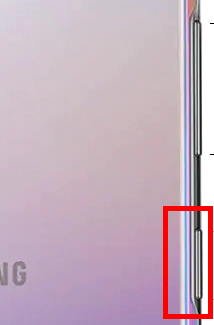
Galaxy Note 10 physical keys On Galaxy Note 10 and Galaxy Note 10+, Samsung replaced the unpopular Bixby key with the Galaxy Note 10 Side key, which is mainly a Power key as in old Galaxy Note devices (but on the opposite side).

So, many Galaxy Note 10 owners are a bit confused about the new Side key. It is in the location of the Bixby key, but it functions mainly as the Power key (with some differences).

This Galaxy Note 10 guide explains the functions and usage of the Side key and shows you how to customize (remap) the Side key on Galaxy Note 10 and Galaxy Note 10+. Questions on how to power on, power off, and reboot Galaxy Note 10, as well as Galaxy Note 10 recovery mode and the safe mode, are also covered.

Although Galaxy Note 10 and Galaxy Note 10+ differs as explained in this post, the Side key on both phones are identical.

Where is the Power button on Galaxy Note 10 and Galaxy  Note 10+?

Samsung used to place the Power key (Power button) on the right side of the phone.

But as illustrated in the Galaxy Note 10 layout, there is no button on the right side of Galaxy Note 10 and Note 10+.

Samsung actually moved the Power key to the left side and replaced the unpopular Bixby key. And they named it the Side key. This is one of the new features of Galaxy Note 10.

Of course, Samsung did not give up Bixby. They added one Bixby feature into the new Side key. For Bixby-haters, you can remove this Bixby feature (read on) and restore the Side key as the traditional Power key.

Functions of Galaxy Note 10 Side key

As mentioned, the Side key is a combination of the Power key and the Bixby key.

By default, the side key has the following functions:

  • When the phone is off, you can press and hold the Side key to power on Galaxy Note 10 or Note 10+.
  • When the phone is off, you can hold Side key and volume
…

Read the full post


Filed Under: Galaxy Note 10, Galaxy Note Guides Tagged With: Bixby, Bixby key, Galaxy Note 10, galaxy note 10 camera, galaxy note 10 layout, Galaxy Note 10 new features, Power button menu, Power key, power off Galaxy Note 10, reboot Galaxy Note 10, recovery mode, remap side key, safe mode, screenshot, side key, take a screenshot

Air Command Explained

By Simon 14 Comments · First published on: September 15, 2013 · Last Modified on: November 3, 2018

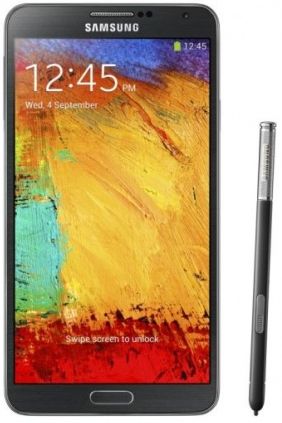
samsung_galaxy_note_3Among the new features in Galaxy Note 3, Air Command probably is the most impressive one.  Our beloved S Pen gets a new life in the Note 3.
When you hover the S Pen over the screen and then press the button on the S-Pen, you will immediately get a palette-like menu with five available actions.  The Air Command works like a context menu in most systems.

There are five available actions (or quick commands) in Air Command: Action Memo, Scrapbook, Screen Write, S Finder, Pen Window.

Although Air Command may have many usages, you may find that it makes note-taking extremely easy, quick and enjoyable.

Action Memo

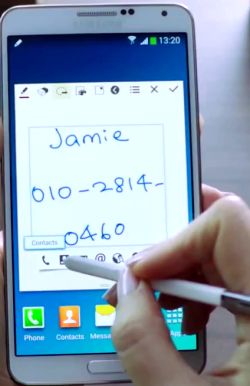
action_memoAction Memo allows you to write a note in your Note 3. Yes, this is not new. We got this feature since Note 1. What makes Action Memo differ from our old memos is that it can automatically execute a function or convert the handwritten documents or drawings into formatted content.
The functions that Action Memo can execute include:

  • initiating a call with the number or name in the memo;
  • adding  to contacts based on the number and name written in the memo;
  • messaging the number or the name written;
  • sending email to the email address written in the memo;
  • looking up an address on Google Maps with the address in the memo;
  • searching the web;
  • saving a task to a to-do list;

Action Memo simply hooks the static info in the memo with some possible operations. Now you memo is alive!

Scrapbook

scrapbookScrapbook allows users to collect, organize, and track content and information from all sources in one place (Scrapbook).

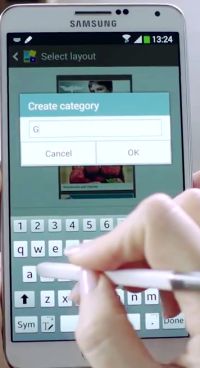
The contents in the Scrapbook are organized as categories, which are created by you.  When you want to save content or info, you can select any existing category or create a new one.

You can scrape part of a web page into your Scrapbook by drawing the area you want to save with the S Pen in Scrapbook mode. The content in your drawing area (based on the top and bottom location of your drawing) will be saved, together with …

Read the full post


Filed Under: Galaxy Note Guides, Galaxy Note News, Galaxy Note Reviews, S Pen Tagged With: Action Memo, Air Command, Galaxy Note 3, Pen Window, S Finder, S Pen, Scrapbook, Screen Write, screenshot

3 fast ways to create screenshot in Galaxy Note (Note II, Note 3 and Note 8.0 as well) without using any apps

You have different ways to take screenshot on your Galaxy Note devices.

By Galaxy Note 57 Comments · First published on: February 14, 2012 · Last Modified on: September 25, 2015

Update:  you can also use these 3 methods to take screenshot on your Samsung Galaxy note 3 and Galaxy Note 10.1 2014 edition. The methods works on all Galaxy Note family products.

Update 2: for Galaxy Note 4, the S pen method does not work. Please check this guide on how to take a screenshot on Galaxy Note 4.

Update 3: Galaxy Note 5 introduced a few nice features to make it even easier to take screenshot on Galaxy Note 5. You can even take screenshot that covers multiple screens.  Please follow this guide to take screenshot on Galaxy Note 5. 

Update 4: If you want to use the scroll capture feature (one screenshot covering multiple screens) in Galaxy Note 5, please follow this scroll capture guide.

yes, there are a lot of screenshot apps in the Android market (Play Store). But do you know you do not need any of them in your Galaxy Note, Galaxy Note II, Galaxy Note 10.1 and Galaxy Note 8.0 to take a screenshot? The following 3 methods are also applicable for Samsung Galaxy Note 3, Galaxy Note 10.1 2014 edition.

With Galaxy Note, you have three different ways to take screenshot.

Method 1: use S pen

Holding the S pen button, then tap and hold to the screen. This is unique to Galaxy note. Other two methods apply to Galaxy S II and a few other Galaxy models. But this method need S pen, so it is exclusive to Galaxy Note. The best thing about this method is that  after the screenshot is captured, you are prompt to edit this screenshot (as you are holding S Pen now). Quite smart design!

Method 2: use Home Key + Power Key

Tapping and holding Home key and the Power/Lock key simultaneously. In the practical operation, you can  press and hold the Home key first, then quickly press the Power key.  This method  is mentioned in the Galaxy SII’s manual, but not in Galaxy Note’s manual. But anyway, it works. Actually it works on most Samsung Android phones.

This method does not work on …

Read the full post


Filed Under: Galaxy Note Guides Tagged With: Android, app, galaxy note, galaxy SII, Home key, market, palm, Power key, S Pen, samsung, screenshot

Primary Sidebar

The ultimate collection of narrative humor, organized by location. From the boardroom to the bedroom, never run out of things to say again

Stop Telling Boring One-Liners. Start Telling Unforgettable Stories

Site Search

RSS Android Guides

  • A Complete Guide to Android ADB Wireless Debugging
  • Android 16: the definitive guide on new features and changes
  • Master Android 15 Easter Egg Game: Landroid
  • New Features and Improvements of Android 15
  • Top 14 new features of Android 14

RSS Galaxy S25 Guides

  • All New Features of One UI 8 (Android 16) Update for Galaxy S25, S24, S23, and S22
  • One UI 8 Update Highlights for Galaxy S25, S24, S23, and S22
  • How to manage camera modes on Galaxy S25 (and Galaxy S24, S23, S22, and S21 with One UI 7 update)?
  • How to Use Galaxy S25 Camera App?
  • A Definite Guide to Galaxy S25 Flipsuit Case
  • How to Access and Customize Now Brief on Galaxy S25?
  • Meaning of Galaxy S25 Status Icons and Notification Icons
  • Layout of Galaxy S25, S25+, and S25 Ultra
  • New Galaxy AI features in Galaxy S25, S25+, and S25 Ultra
  • Top 10 new features of Galaxy S25, S25+, and S25 Ultra

RSS Samsung Galaxy S24 Guides@GGO

  • The definitive guide to One UI 7 (Android 15) update for Galaxy S24, S23, S22, and S21
  • The Definitive Guide to Galaxy AI on Galaxy S24, S23, S22, Fold 6, Fold 5, Flip 6, and Flip 5
  • Use the Light Performance Profile to Extend Battery Life and Reduce Heat on Galaxy S24, S23, S22, and S21 (all Samsung Galaxy Phones with Android 14/One UI 6.0)
  • How to adjust lock screen timeout on Galaxy S24, S23, S22, and other Galaxy devices?
  • How to use Circle to Search on Galaxy S24?
  • Meaning of Galaxy S24 status icons and notification icons on Galaxy S24, S24+, and S24 Ultra

RSS Guides for Samsung Galaxy S23

  • Explanation of all One UI 6.1 features for Galaxy S23, S23+, S23 Ultra, and other Galaxy devices
  • How to use One-Tap Editing in the Android 14 (One UI 6) update?
  • How to enable and use Auto Scan to scan documents automatically on Galaxy S23, S22, and S21?
  • New camera features in One UI 6 (Android 14) update for Galaxy S23, S22, and S21

RSS Galaxy S22 Guides

  • A Complete Guide for Android 14 (One UI 6) Update on Samsung Galaxy Devices
  • How to touch and hold to customize Lock Screen on Galaxy S22, S21, and S20 with the Android 13 update?
  • How to use Maintenance Mode on Galaxy S23, S22, S21, and S20 with Android 13 (One UI 5)?

RSS Galaxy S21 Guides

  • Top 12 new features in Android 12 update for Galaxy S21, S20 and S10
  • Android 12 update vs One UI 4.0 vs One UI 4.1: update Galaxy S21, S20 and S10 to Android 12
  • How to set and resize photo size on Samsung Galaxy S21, S20, S10, and S9 without using any third-party apps?

RSS Galaxy S20 Guides

  • The End of the Road: No Android 14 Update for the Galaxy S20
  • How to Use Enhanced Processing on Galaxy S20 with Android 11 update?
  • How to access, use, and customise widgets on Galaxy S20 lock screen and AOD screen with Android 11 update for Galaxy S20?

RSS Galaxy S10 Guides

  • End of security update for Galaxy S10, S10+ and S10e
  • Top 10 new features in Android 10 update for Galaxy S10
  • Top 5 new features added in Galaxy S10 September Update

RSS Galaxy S9 Guides

  • How to use Bixby quick commands on Galaxy S9, S9+, S8, S8+, Note 8, and Note 9 with the Android Pie update?
  • How to remap Bixby button on Galaxy S9 and S9+ after updating to Android Pie?

RSS Headphone Guide Pro

  • Sony WH-1000XM6: the Definitive Guide
  • Galaxy Buds 3 vs Galaxy Buds 3 Pro: What are the differences?
  • History of Galaxy Buds
  • Top 10 new features of Galaxy Buds 3 and Galaxy Buds 3 Pro
  • Samsung Galaxy Buds Guides
  • AirPods and AirPods Pro Guides
  • Bluetooth Codec for Wireless Headphones and Earbuds: Everything You Need to Know

RSS Google Home Guides

  • How to Use Quick Gestures on Nest Hub 2nd Gen and Nest Hub Max?
  • Understand the layout of Nest Hub (including Nest Hub 2nd Gen, Google Home Hub)
  • How to control Nest Audio?
  • Nest Audio Guides
  • Layout of Google Nest Mini (Google Home Mini 2nd Gen)
  • How to connect Google Home to a Bluetooth speaker?

RSS Moto G Guide

  • Stylus features on Moto G Stylus (all models)
  • What’s new in Moto G 2024? Moto G 5G 2024 vs Moto G Power 2024 vs Moto G Play 2024
  • Understand Moto G Model Names
  • Thank You
  • Moto G8 vs Moto G8 Power vs Moto G8 Power Lite vs Moto G Power vs Moto G Stylus vs Moto G Pro vs Moto G fast: What are the differences?

RSS Moto X Phone

  • Welcome on board, Motorola Razr!
  • Official Moto X4 User manual (User guide for Moto X 4th Gen , Moto X 2017)
  • What’s new in Android Marshmallow update for Moto X (Moto X 2015, Moto X 2014, Moto X Style and Moto X Pure edition)?

RSS Moto E Guide

  • How to use SIM cards on Moto E6, E6 Plus, E6 Play, and E6s 2020?
  • Official user manual for Moto E6, Moto E6 Plus, Moto E6 Play, and Moto E6s
  • Moto E6 vs Moto E6 Plus vs Moto E6 Play vs Moto E6s: what are the major differences?

RSS Kindle Fire For Kids Guide

  • Fire Tablet Buyer’s Guide 2025
  • How to use Writing Assist on Fire Tablet?
  • How to use Wallpaper Creator on your Fire tablet?

RSS All About Chromecast

  • How to watch YouTube without ads on Chromecast with Google TV (without YouTube Premium) and on Google TV Streamer?
  • How to use Fast Pair on Chromecast with Google TV to pair headphones and earbuds with Chromecast?
  • How to enable developer options in Chromecast with Google TV and Google TV Streamer?
  • Chromecast 4th Gen (Chromecast with Google TV) is coming!
  • How to use VLC for Android to stream local media to Chromecast?

RSS Galaxy S6 Guide

  • Android Nougat Update Guide for Galaxy S6, Galaxy S6 edge and Galaxy S6 edge+
  • Official Galaxy S6 user manual with Android Nougat update
  • Top 10 new features in Android Marshmallow update for Galaxy S6, Galaxy S6 edge and S6 edge+

RSS Galaxy S7 Guides

  • How to use Galaxy S7 multi window new features in Android Nougat udpate for Galaxy S7 and Galaxy S7 edge?
  • How to customize Galaxy S7 quick setting buttons after Android Nougat update?
  • Galaxy S7 performance mode in Android Nougat update for Galaxy S7 and Galaxy S7 edge

RSS Android Guides

  • A Complete Guide to Android ADB Wireless Debugging
  • Android 16: the definitive guide on new features and changes
  • Master Android 15 Easter Egg Game: Landroid
  • New Features and Improvements of Android 15
  • Top 14 new features of Android 14

Footer

RSS Samsung Galaxy S4

  • Samsung Galaxy S4 Manual for Verizon
  • Galaxy S4 User Manual and Handbook in English

RSS Galaxy S5 Guide

  • How to enter Galaxy S5 recovery mode?
  • How to set Galaxy S5 photo size and video size?
  • How to use Galaxy S5 camera voice control?

RSS Chinese Classical Music

  • How to Cast Chinese Music Radio to Chromecast or Google Home?
  • 十面埋伏 (Ambushed,Pipa,琵琶曲,Shi Mian Mai Fu)
  • Meet in Yurt(敖包相会, Ao Bao Xiang Hui,Folk song,民歌)
  • Purple Bamboo Melody(紫竹调, Zi Zhu Diao,Yangqin,扬琴)

RSS Drive In Singapore

  • Singapore ERP (Electronic Road Pricing): 6 Facts You Need to Know
  • Car Insurance in Singapore Explained
  • Top 5 rules of driving in Singapore safely and legally during COVID-19 Circuit Breaker period
  • Understand COE Price by 10 Simple Questions
  • How to convert a foreign driving license to a Singapore driving license?
  • How to get a Touch ‘n Go card as a Singapore driver?
  • What is covered in the car warranty in Singapore? What is not?
  • What is the Singapore Road Speed Limit?
  • How to register, collect and use Malaysia Vehicle Entry Permit (VEP)?
  • Why are cars in Singapore so expensive?

RSS Neato XV Owners

  • Neato XV Revival Guide: Repair, Hack & Restore (The 2026-2027 Edition)
  • The Scavenger’s Guide: How to Buy “Broken” Neato XVs for $20 (And Fix Them)
  • 3D Print Your Own Spare Parts: The Neato XV STL Guide
  • Stop Guessing: How to Use NeatoControl to “X-Ray” Your Robot
  • The Forbidden Upgrade: Neato Firmware Update to Vorwerk VR100 (Offline Guide)
  • The Vault: Neato XV & Vorwerk VR100 Software Repository
  • Neato Charging Station Blinking Green? The $2 C10 Capacitor Fix
  • Neato Error 3000 Fix: Lidar Motor & Belt Replacement Guide (XV-21, XV-15, XV-13, XV-11)
  • The Battery Dilemma: How to Double Your Neato XV’s Runtime (NiMH vs. Lithium)?
  • Why the “Ancient” Neato XV is Better Than Modern Robots (In 2025 and 2026)

RSS Free Hosting Answers!

  • How to connect to PPTP VPN server from a Windows machine (Windows 7 as an example)
  • How to create a 404 page?

© 2012–2026 · AllAboutGalaxyNote.com is community for Galaxy Note owners! · Hosted by PTRHosting · Powered by Genesis framework for WordPress
Galaxy Note tips, tricks, how-to guides and user manuals for all Galaxy Note devices. S Pen guides and S Note guides.

Disclaimer: Samsung, Galaxy, Galaxy Note, Galaxy NoteII, Galaxy Note 3, Galaxy Note 4, Galaxy Note 5, Galaxy Note 7, Galaxy Note 8, Galaxy Note 9, Galaxy Note 10, Galaxy Note 10.1, Galaxy Note 10.1 2014 edition, Galaxy Note 8.0, Galaxy Note Pro and Galaxy Note Edge are trademarks of Samsung . This website is NOT affiliated with Samsung in any way. All the information provided on this website is provided on an "as is" and "as available" basis and you agree that you use such information entirely at your own risk.

Add Galaxy Note Tips & Tricks to your Homescreen!

Add
We use cookies to give you the best online experience. By using our website you agree to our use of cookies in accordance with our cookie policy.