Update: you can also use these 3 methods to take screenshot on your Samsung Galaxy note 3 and Galaxy Note 10.1 2014 edition. The methods works on all Galaxy Note family products.
Update 2: for Galaxy Note 4, the S pen method does not work. Please check this guide on how to take a screenshot on Galaxy Note 4.
Update 3: Galaxy Note 5 introduced a few nice features to make it even easier to take screenshot on Galaxy Note 5. You can even take screenshot that covers multiple screens. Please follow this guide to take screenshot on Galaxy Note 5.
Update 4: If you want to use the scroll capture feature (one screenshot covering multiple screens) in Galaxy Note 5, please follow this scroll capture guide.
yes, there are a lot of screenshot apps in the Android market (Play Store). But do you know you do not need any of them in your Galaxy Note, Galaxy Note II, Galaxy Note 10.1 and Galaxy Note 8.0 to take a screenshot? The following 3 methods are also applicable for Samsung Galaxy Note 3, Galaxy Note 10.1 2014 edition.
With Galaxy Note, you have three different ways to take screenshot.
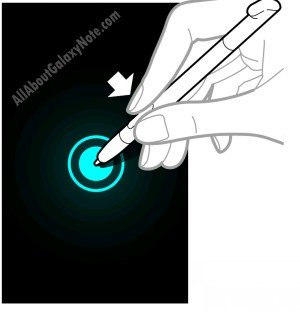
Method 1: use S pen
Holding the S pen button, then tap and hold to the screen. This is unique to Galaxy note. Other two methods apply to Galaxy S II and a few other Galaxy models. But this method need S pen, so it is exclusive to Galaxy Note. The best thing about this method is that after the screenshot is captured, you are prompt to edit this screenshot (as you are holding S Pen now). Quite smart design!
Method 2: use Home Key + Power Key
Tapping and holding Home key and the Power/Lock key simultaneously. In the practical operation, you can press and hold the Home key first, then quickly press the Power key. This method is mentioned in the Galaxy SII’s manual, but not in Galaxy Note’s manual. But anyway, it works. Actually it works on most Samsung Android phones.
This method does not work on Galaxy Note 10.1 because there is no Home button on Note 10.1.
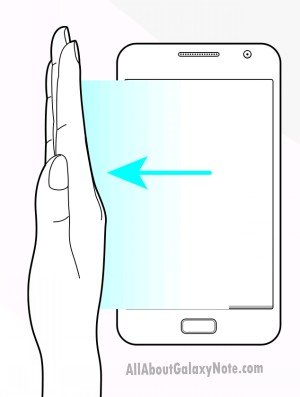
Method 3: Use your palm
Sweeping your palm across the screen to capture a screenshot. This is mentioned in the Galaxy Note User Manual and it sounds quite new. In the practical operation, you need sweep slowly. Sometimes, the phone may think you are trying to touch some location.
So, now try it on your Galaxy Note, Galaxy Note II, Galaxy Note 10.1 and Galaxy Note 8.0 to take some screenshots.
You can also try the same methods to take screenshot on your Samsung Galaxy Note 3 and Samsung Galaxy note 10.1 2014 edition.
More tips on Galaxy Note, Galaxy Note 2, Galaxy Note 3, Galaxy Note 8.0 and Galaxy Note 10.1 can be found in Tips and Tricks page.
Galaxy Note 3 online manual (HTML edition) is available here.
If you want to download the PDF version of Galaxy Note 3, Note Ii, Note 8.0. Note 10.1, or read the PDF version on line, you can find all of them in this User Manual page.

Research Nerd says
My Galaxy Note 3 seems to be having a virus. At doesn’t seem to open images, instead it presents a black screen.. what to do..?
Simon says
If you only install apps from Google play and other reliable sources, you should not worry about virus on android.
You may just reboot the phone.
If rebooting doesn’t help, you can try go to settings – application manager – gallery, tap clear cache and clear data.
Our Facebook page || Galaxy S6 Guides || Galaxy S7 Guides || Android Guides || Galaxy S8 Guides || Galaxy S9 Guides || Google Home Guides || Headphone Guides || Galaxy Note Guides || Fire tablet guide || Moto G Guides || Chromecast Guides || Moto E Guides || Galaxy S10 Guides || Galaxy S20 Guides || Samsung Galaxy S21 Guides || Samsung Galaxy S22 Guides || Samsung Galaxy S23 Guides
JB says
I have a note 10.1..I couldn’t get the pen to work. Is there a trick I missed?
Simon says
When your S Pen touches the screen, you then press and hold the button. If there is no reaction, you probably have to get a new S Pen.
Our Facebook page || Galaxy S6 Guides || Galaxy S7 Guides || Android Guides || Galaxy S8 Guides || Galaxy S9 Guides || Google Home Guides || Headphone Guides || Galaxy Note Guides || Fire tablet guide || Moto G Guides || Chromecast Guides || Moto E Guides || Galaxy S10 Guides || Galaxy S20 Guides || Samsung Galaxy S21 Guides || Samsung Galaxy S22 Guides || Samsung Galaxy S23 Guides
gwenna says
What r yall calling a home button on a note?
Simon says
What do you mean? It is home button.
Our Facebook page || Galaxy S6 Guides || Galaxy S7 Guides || Android Guides || Galaxy S8 Guides || Galaxy S9 Guides || Google Home Guides || Headphone Guides || Galaxy Note Guides || Fire tablet guide || Moto G Guides || Chromecast Guides || Moto E Guides || Galaxy S10 Guides || Galaxy S20 Guides || Samsung Galaxy S21 Guides || Samsung Galaxy S22 Guides || Samsung Galaxy S23 Guides
gwenna says
swiping of the hand is not working and the NOTE doesn’t have a home button. Is there something else I can try? I really don’t want to have to get the S out every time.
Simon says
All Note devices have the home button except the old note 10.1. In this device, you can try power button +volume down button.
Our Facebook page || Galaxy S6 Guides || Galaxy S7 Guides || Android Guides || Galaxy S8 Guides || Galaxy S9 Guides || Google Home Guides || Headphone Guides || Galaxy Note Guides || Fire tablet guide || Moto G Guides || Chromecast Guides || Moto E Guides || Galaxy S10 Guides || Galaxy S20 Guides || Samsung Galaxy S21 Guides || Samsung Galaxy S22 Guides || Samsung Galaxy S23 Guides
gwenna says
Nope that doesnt work. The hand swipe worked twice and now it wont work.
Simon says
First, the S Pen method and power + home button method should always work.
The palm swiping method may be affected by other apps.
Our Facebook page || Galaxy S6 Guides || Galaxy S7 Guides || Android Guides || Galaxy S8 Guides || Galaxy S9 Guides || Google Home Guides || Headphone Guides || Galaxy Note Guides || Fire tablet guide || Moto G Guides || Chromecast Guides || Moto E Guides || Galaxy S10 Guides || Galaxy S20 Guides || Samsung Galaxy S21 Guides || Samsung Galaxy S22 Guides || Samsung Galaxy S23 Guides
Aniruddh Karthikn says
Thanks for sharing all the tips. I am using Galaxy Note 1. Can you guide me on how to take screenshot?
Simon says
All of the 3 methods should work with note 1.
Our Facebook page || Galaxy S6 Guides || Galaxy S7 Guides || Android Guides || Galaxy S8 Guides || Galaxy S9 Guides || Google Home Guides || Headphone Guides || Galaxy Note Guides || Fire tablet guide || Moto G Guides || Chromecast Guides || Moto E Guides || Galaxy S10 Guides || Galaxy S20 Guides || Samsung Galaxy S21 Guides || Samsung Galaxy S22 Guides || Samsung Galaxy S23 Guides
jerrica says
Thanks this was very helpful. I have the galaxy note and was curious how to screenshot
VIktor says
Note 3 – all 3 works. I keep my gestures off so 3-rd method is not for me. But Power+Home and Stylus are my fav ways.
The is one more way with stylus – Click the button and select ‘Screen Write’ and without writing anything click save. My fav feature because it takes a screenshot and allows you to outline or underline an area which you want people to see.
Simon says
thank you for sharing the tips.
Our Facebook page || Galaxy S6 Guides || Galaxy S7 Guides || Android Guides || Galaxy S8 Guides || Galaxy S9 Guides || Google Home Guides || Headphone Guides || Galaxy Note Guides || Fire tablet guide || Moto G Guides || Chromecast Guides || Moto E Guides || Galaxy S10 Guides || Galaxy S20 Guides || Samsung Galaxy S21 Guides || Samsung Galaxy S22 Guides || Samsung Galaxy S23 Guides
zealia says
thank you, this was so very helpful.
benjamin says
note 10.1 2014 using the oval button instead of home works for the home and power screenshot
fazal says
In my note 2 in 4.3 update home +power screenshots doesnt work need help plsssssssss
Paddygedi says
Power button+ Home key+ volume down (if the Power button+ Home key don’t work)
Tonia says
Wow – it works great …happy I visited dis site….. thanx a million
bodhi says
thanks for the tips, I am new to the android, so here is where are screen captures are saved on the phone
Files are saved in the Apps➔ My Files➔ All➔ Device storage ➔ Pictures ➔ Screenshots folder. You can also find them in your Gallery in the Screenshots album
alvin says
is this works in skype via note?
Galaxy Note says
Yes, it should work.
Our Facebook page || Galaxy S6 Guides || Galaxy S7 Guides || Android Guides || Galaxy S8 Guides || Galaxy S9 Guides || Google Home Guides || Headphone Guides || Galaxy Note Guides || Fire tablet guide || Moto G Guides || Chromecast Guides || Moto E Guides || Galaxy S10 Guides || Galaxy S20 Guides || Samsung Galaxy S21 Guides || Samsung Galaxy S22 Guides || Samsung Galaxy S23 Guides
Oc Jaman Ali says
Oh! I spent DAYS finding lame app’s on the app store. I had started to hate my note. I newly switched from blackberry’s to an android phone. U just made me love my phone !! Thanks alot. Really helpfull
Galaxy Note says
Glad to know it works for you. Enjoy your phone.
Our Facebook page || Galaxy S6 Guides || Galaxy S7 Guides || Android Guides || Galaxy S8 Guides || Galaxy S9 Guides || Google Home Guides || Headphone Guides || Galaxy Note Guides || Fire tablet guide || Moto G Guides || Chromecast Guides || Moto E Guides || Galaxy S10 Guides || Galaxy S20 Guides || Samsung Galaxy S21 Guides || Samsung Galaxy S22 Guides || Samsung Galaxy S23 Guides
Grimli says
Since Jelly Bean the wipe thing does not work anymore
Luckily we still have a pen
Galaxy Note says
In jelly bean, you need set it in Settings–Motion–hand motion
Our Facebook page || Galaxy S6 Guides || Galaxy S7 Guides || Android Guides || Galaxy S8 Guides || Galaxy S9 Guides || Google Home Guides || Headphone Guides || Galaxy Note Guides || Fire tablet guide || Moto G Guides || Chromecast Guides || Moto E Guides || Galaxy S10 Guides || Galaxy S20 Guides || Samsung Galaxy S21 Guides || Samsung Galaxy S22 Guides || Samsung Galaxy S23 Guides
robert silvano says
all tips are working..got my note 2 jb version just 2 weeks ago..thank you for the tips, downloading the manual now.. 😉
Mahesh Lingsugur says
First option worked like char on my Note! thanks!
Sachin Cheenu says
can anyone telll me how t download ashphalt 7 in galaxy note 2 free. pllllllzzzz reply fast and flasher player also
Galaxy Note says
it is a paid app, so you should pay to get it. Using pirated apps is easy to be tracked on your phone.
Our Facebook page || Galaxy S6 Guides || Galaxy S7 Guides || Android Guides || Galaxy S8 Guides || Galaxy S9 Guides || Google Home Guides || Headphone Guides || Galaxy Note Guides || Fire tablet guide || Moto G Guides || Chromecast Guides || Moto E Guides || Galaxy S10 Guides || Galaxy S20 Guides || Samsung Galaxy S21 Guides || Samsung Galaxy S22 Guides || Samsung Galaxy S23 Guides
isai azael villarreal patlan says
GREAT!! awesome article.
Hahahaha
I have been using my galaxy note from about 4 moths.. and i didn´t knew about the palm trick!! Is amazing!!
yet.. it would be nice to have the same after disp.. as the s-pen snaphsot , mostly you need to sent or do something with the snap, as soon as it is taken.
But the trick is great!!
thank you so much, !! greetings!
Galaxy Note says
Glad to know the post is useful. Enjoy your Note.
Our Facebook page || Galaxy S6 Guides || Galaxy S7 Guides || Android Guides || Galaxy S8 Guides || Galaxy S9 Guides || Google Home Guides || Headphone Guides || Galaxy Note Guides || Fire tablet guide || Moto G Guides || Chromecast Guides || Moto E Guides || Galaxy S10 Guides || Galaxy S20 Guides || Samsung Galaxy S21 Guides || Samsung Galaxy S22 Guides || Samsung Galaxy S23 Guides
crosstechno says
The 3rd is cool, i have tried that and it works.
Thx for your sharing.
Lax says
I love galaxy note, but when i use skype within 3 or 4 minute it is heated very much, what is a solution
Galaxy Note says
Not a solution, but my personal experience is to uninstall it.
I had problems with the Skype app on all my Android devices (it seems it does not like me). Now I use Google Voice, CSipSimple and Hang Out. This is sufficient.
Our Facebook page || Galaxy S6 Guides || Galaxy S7 Guides || Android Guides || Galaxy S8 Guides || Galaxy S9 Guides || Google Home Guides || Headphone Guides || Galaxy Note Guides || Fire tablet guide || Moto G Guides || Chromecast Guides || Moto E Guides || Galaxy S10 Guides || Galaxy S20 Guides || Samsung Galaxy S21 Guides || Samsung Galaxy S22 Guides || Samsung Galaxy S23 Guides
Adithya Bhat says
Is it true that note will be getting jelly bean? Can you please verify?
Galaxy Note says
Yes, Galaxy Note will get the jelly Bean. As I know, the JB (4.1) update will be available in Q1 2013.
Of course, Samsung has NOT confirmed this. Very likely, it will be announced only after Galaxy Note 2 is announced (end of this month).
Our Facebook page || Galaxy S6 Guides || Galaxy S7 Guides || Android Guides || Galaxy S8 Guides || Galaxy S9 Guides || Google Home Guides || Headphone Guides || Galaxy Note Guides || Fire tablet guide || Moto G Guides || Chromecast Guides || Moto E Guides || Galaxy S10 Guides || Galaxy S20 Guides || Samsung Galaxy S21 Guides || Samsung Galaxy S22 Guides || Samsung Galaxy S23 Guides
nandop89 says
My not is runnin ICS 4.0.4(US) and I believe it was possibly disabled when it upgraded? I’m very disappointed btw. I believe we need to expadite this to Samsung, i find method 2 to be a massive help than 1 or 3
Galaxy Note says
Not sure about this on the US version.
For international version, it still works. But the timing becomes important: you need almost press the two buttons simultaneously.
Our Facebook page || Galaxy S6 Guides || Galaxy S7 Guides || Android Guides || Galaxy S8 Guides || Galaxy S9 Guides || Google Home Guides || Headphone Guides || Galaxy Note Guides || Fire tablet guide || Moto G Guides || Chromecast Guides || Moto E Guides || Galaxy S10 Guides || Galaxy S20 Guides || Samsung Galaxy S21 Guides || Samsung Galaxy S22 Guides || Samsung Galaxy S23 Guides
Willem Tieleman says
Hello jbmgjja.
Have you done this.
Wipe data / factory reset.
and factory reset done.? I did and everything works great.
For me everything works super good.
wimhvh says
ICS – problem is nonsense.
I thought I had problem with screenshots.
Melvin this to my link to my reply. you have no app needed for making screenshots with samsung note.
read this but everything works just super. !
Even after the
Wipe data / factory reset.
and factory reset
see link screenshots works so super good. for me.!
https://www.allaboutgalaxynote.com/3-…sing-any-apps/
robert says
Method two DOES still work on note with ics!! 100%%%
Missy says
i have tried this until im blue in the face. method 2 worked before i upgraded now it doesnt at all… i am a pro at the timing ive done it so much before. ive done it on my facinate and stratospheres for years on verizons network. i recently switched to att to get the note and that method worked until the upgrade. not sure why it works for you and not the rest of us. but actually the palm swipe is faster and easier so i really could care less about trying to push 2 buttons just right anymore! LOL but if anyone figures out whats up with method 2 and finds a fix id love to know just for curiosity sake. 🙂
Galaxy Note says
Maybe, this depends on the region of the firmware. For mine, it works without issues, just the timing is critical as it may call out the task manager easily. Most of the time, I just use the S Pen.
Our Facebook page || Galaxy S6 Guides || Galaxy S7 Guides || Android Guides || Galaxy S8 Guides || Galaxy S9 Guides || Google Home Guides || Headphone Guides || Galaxy Note Guides || Fire tablet guide || Moto G Guides || Chromecast Guides || Moto E Guides || Galaxy S10 Guides || Galaxy S20 Guides || Samsung Galaxy S21 Guides || Samsung Galaxy S22 Guides || Samsung Galaxy S23 Guides
yousseph says
Method 2: use Home Key + Power Key doesn’t work after upgrade to ICS.
JBMGJJA says
After the update to 4.0.3 on galaxy note the 2nd way (home + power key) does not work anymore for me.
GalaxyNote says
It does work for mine. Timing is important: try to press them simultaneously(within 1 second; otherwise the power options or task manager will pop out)
Our Facebook page || Galaxy S6 Guides || Galaxy S7 Guides || Android Guides || Galaxy S8 Guides || Galaxy S9 Guides || Google Home Guides || Headphone Guides || Galaxy Note Guides || Fire tablet guide || Moto G Guides || Chromecast Guides || Moto E Guides || Galaxy S10 Guides || Galaxy S20 Guides || Samsung Galaxy S21 Guides || Samsung Galaxy S22 Guides || Samsung Galaxy S23 Guides
david says
i had the same problem (well it wasn’t a problem) the thing is, unlike before the update, you actual have to hold both the home and the power button for like 1 second or so, where prior, all you had to do was push them at the same time real quick. Hope this helps.
Galaxy Note says
thanks for the info.
Our Facebook page || Galaxy S6 Guides || Galaxy S7 Guides || Android Guides || Galaxy S8 Guides || Galaxy S9 Guides || Google Home Guides || Headphone Guides || Galaxy Note Guides || Fire tablet guide || Moto G Guides || Chromecast Guides || Moto E Guides || Galaxy S10 Guides || Galaxy S20 Guides || Samsung Galaxy S21 Guides || Samsung Galaxy S22 Guides || Samsung Galaxy S23 Guides
dvizzle says
i have a galaxy note with ics, incredible phone 🙂 they have changed ‘method 2’ – no longer home button, now down volume button. but my struggle is trying to take a screenshot of a paused video from my gallery, no methods work? can you help???
GalaxyNote says
I just tested it: it still works. But the timing is critical, if you press power button too slow, task manage will pop out. Once you press down the home button, immediately press the power button. Or Press down the power button, then immediately press down home button.
Can you try again?
Our Facebook page || Galaxy S6 Guides || Galaxy S7 Guides || Android Guides || Galaxy S8 Guides || Galaxy S9 Guides || Google Home Guides || Headphone Guides || Galaxy Note Guides || Fire tablet guide || Moto G Guides || Chromecast Guides || Moto E Guides || Galaxy S10 Guides || Galaxy S20 Guides || Samsung Galaxy S21 Guides || Samsung Galaxy S22 Guides || Samsung Galaxy S23 Guides
V says
Great tips! The palm trick works great. The home and power trick still results in my screen turning off. I guess I have to get the timing just right.
GalaxyNote says
yes, the timing is important. anyway, it’s fun to have different ways to take screenshot.
Our Facebook page || Galaxy S6 Guides || Galaxy S7 Guides || Android Guides || Galaxy S8 Guides || Galaxy S9 Guides || Google Home Guides || Headphone Guides || Galaxy Note Guides || Fire tablet guide || Moto G Guides || Chromecast Guides || Moto E Guides || Galaxy S10 Guides || Galaxy S20 Guides || Samsung Galaxy S21 Guides || Samsung Galaxy S22 Guides || Samsung Galaxy S23 Guides
Sanjay R Nath says
I had some financial crisis and couldnt get my note before! I jut ordered and waiting to get delivered ! Im starting to fall in love with your website .
GalaxyNote says
Thanks for reading this blog. Enjoy your Note.
Our Facebook page || Galaxy S6 Guides || Galaxy S7 Guides || Android Guides || Galaxy S8 Guides || Galaxy S9 Guides || Google Home Guides || Headphone Guides || Galaxy Note Guides || Fire tablet guide || Moto G Guides || Chromecast Guides || Moto E Guides || Galaxy S10 Guides || Galaxy S20 Guides || Samsung Galaxy S21 Guides || Samsung Galaxy S22 Guides || Samsung Galaxy S23 Guides
spiderman says
u r gr8 dude… All 3 tricks for taking screenshots are good especially the first nd 3rd trick for note. U rocks