 Update 1: Galaxy Note 5 S Pen is another design defect. If you accidentally insert the Galaxy Note 5 S Pen in the wrong direction, Galaxy Note 5 will not be able to detect whether the S Pen is in the slot or not. There are no solutions except visiting a service center. Please read this page for details.
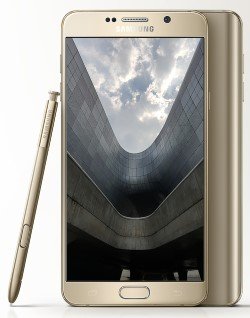
As detailed in this post, Galaxy Note 5 comes with some new or improved features, for example, a new design with a curved glass back, fast wireless charging, improved S pen features, improved camera, more RAM, a faster CPU, and a better fingerprint sensor.
You will surely enjoy these features and the new Galaxy Note 5.
However, it seems Samsung failed to get some user feedback on the defects or design flaws of the Galaxy S6 and Galaxy S6 Edge. Galaxy Note 5 shares some similar defects.
This post will try to summarize the top 5 defects in Galaxy Note 5.
Top 5 defects of Galaxy Note 5: 1. No micro SD card support
All previous generations of Galaxy Note devices, including Galaxy Note tablets (Galaxy Note 8.0, Galaxy Note 10.1, Galaxy Note 10.1 2014 edition and Galaxy Note Pro), have a micro SD card slot for you to expand the storage or to transfer files.
But the Galaxy Note 5 stopped this trend. Galaxy Note 5 does not support a micro SD card. There is no micro SD card slot.
As a micro SD card has a similar size to a SIM card, a micro SD card slot does not necessarily reside inside the phone.
If you have a SIM card slot, then technically, there is no problem with putting a micro SD card slot.
One of the excuses for the missing SD card slot is that Galaxy Note 5 is using UFS 2.0 storage, which is three times faster than eMMC storage. The micro SD card is too slow to match the performance of UFS 2.0 storage.
The truth is in your PC, you very likely have a very fast SSD drive, together with the traditional, slower mechanical hard disk. It does not make sense for you to throw away your old mechanical disk because of the new SSD drive. They can co-exist and serve different purposes: SSD for fast access and old disk for storage.
This is the same for UFS 2.0 and micro SD cards.
Another commonly cited excuse is that most Galaxy Note users do not use SD cards at all, based on some stupid market studies.
The truth is you should still buy medical insurance, although you haven’t made any claims in the last 10 years.
One of the major factors in choosing Samsung Galaxy Note devices is the “choices.”
The reality is Samsung made a wrong decision by removing micro SD card support. They hope they can get enough Galaxy Note 5 users who do not know what they want.
But Galaxy Note 5 will lose many existing Note users who know what choices mean.
Top 5 defects of Galaxy Note 5: 2. non-removable battery
The removable battery is now a luxury for high-end smartphones.
Apple enjoyed the success of embedded non-removable batteries in all their devices. The non-removable battery can give them more freedom in internal design.
Now, more and more Android vendors follow this strategy.
But they forget that Apple has an extensive service network with acceptable service standards all over the world.
This means Apple fanboys can replace the battery easily in almost all places. The cost will be relatively similar in all regions. So, it is predictable.
So, how about Samsung? How many Samsung service centers are in your area?
Do you know how much they will charge you for replacing the battery 2 years later?
You have no answer. Samsung has no answer. Nobody has the answer. Maybe the part is always out of stock, and they will suggest you buy a newly released Galaxy Note 7.
Even worse, in some regions, Samsung relies on local distribution agents. Why do they have an interest in stocking parts for more than 20 different smartphones that are two years old?
Of course, the non-removable battery is due to the glass back cover design. It is hard to design a removable glass back cover.
So, the question is whether the glass is a good choice over plastic, as in previous Galaxy Note devices.
Although many Galaxy Note owners criticized the plastic back cover, what they complained about was the poor-quality plastic Samsung used.
If you try Motorola or Nokia phones, you will know plastic is not created equally. Motorola even shows us you can customize your $180 Moto G with all-plastic construction.
The reality is that Samsung made another wrong decision to go to glass for the back cover instead of using better plastics.
Metal is not a good option if wireless charging is needed.
Top 5 defects of Galaxy Note 5: 3. No IR blaster
Surprisingly, Galaxy Note 5 removed the IR blaster, which some Galaxy Note 4 owners have enjoyed.
Very likely, “most” Galaxy Note 4 owners never used it. Removing it can save less than $1 in each device.
Therefore, Samsung decided to remove this feature from Galaxy Note 5 to cater to the mass market who do not know what they want.
As mentioned, this means Samsung slammed the doors to users who know why choices matter.
Top 5 defects of Galaxy Note 5: 4. Smaller battery
Galaxy Note 5 has an screen size (5.7″) identical to Galaxy Note 4. But the battery capacity is reduced from 3220mAh to 3000mAh.
Samsung’s home-made 14nm Exynos processor in Galaxy Note 5 may probably be more power efficient than the 28nm Snapdragon 805 processors in Note 4.
But you should not expect longer battery life than Galaxy Note 4.
This is really bad for heavy users who have problems accessing the wall charger often, although you can charge Galaxy Note 5 battery faster.
For Galaxy Note 4 owners, you can just prepare a spare battery. For Galaxy Note 5 owners, you have to learn to save battery and reduce the usage.
Top 5 defects of Galaxy Note 5: 5. missing Lollipop features
Android allows all sorts of customization.
This makes a colorful Android world. HTC Android phones may have some unique features. LG can customize it to get some unique features.
Samsung is infamous for adding too many useless (sometimes also unique) features to Android phones.
But the backlash of many half-baked unique features in Galaxy S4 dragged Samsung “back to basics” in Galaxy S5.
Now, Samsung is heading to another extreme. |
They trimmed many useful features in the TouchWiz. Now, they also trim some Android features.
Some excellent Android Lollipop features were removed in the Samsung Galaxy Note 5 as they did for the Galaxy S6. This is surely another defect of Galaxy Note 5.
Here are a few examples:
- No guest user support. Android Lollipop offers guest user mode and multiple users in smartphones. This makes device sharing easier and safer. But you cannot find these features in Galaxy Note 5.
- No multiple-user support.
- Messed notification and interruption system. Although the Android Lollipop notification and interruption system received some negative feedback, it is still the best notification system compared to iOS or Windows phones. In the Samsung Galaxy Note 5, Samsung implemented a hybrid of new notification system and the old one. It simply creates more confusion for new users.
What do you think about defects of Galaxy Note 5? What are the missing features you want to see in Galaxy Note 5?
Please share your thoughts in the comment box below.

Dan says
Totally agree with the post, the Note 5 was, without a doubt, the biggest downgrade in the Galaxy Note phone series.
Micha says
Is it possible to continually scroll through the pages on the phone without needing to backup and reverse at the last page.
Simon says
No, you cannot. You will be stopped in the leftmost and rightmost pages in Note 5. This is a “new” feature in TouchWiz since S6.
Our Facebook page || Galaxy S6 Guides || Galaxy S7 Guides || Android Guides || Galaxy S8 Guides || Galaxy S9 Guides || Google Home Guides || Headphone Guides || Galaxy Note Guides || Fire tablet guide || Moto G Guides || Chromecast Guides || Moto E Guides || Galaxy S10 Guides || Galaxy S20 Guides || Samsung Galaxy S21 Guides || Samsung Galaxy S22 Guides || Samsung Galaxy S23 Guides
Jerry Rodd says
I beg to differ. Defects for the way I use these phones. I preordered the first Note Cell. So I was as bad as an Apple Fanboy, being the first one to show up on release day to acquire that big guy. I remember when the phone guy set it in my hand. I thought to myself, “WHAT HAVE I DONE”. That thing was scary huge. By days end, I was smiling ear to ear.
The fact my fantasic display was 2.25 times larger then the current 3.5″ iPhone, 16gb standard memory, (Apple had 8gb and charged $100 to go the 16gb. Apple charged $99 to replace the battery, they only had 3g with a max possible 21mb download speed. The Note was my 2nd 4G on ATT was hitting up to 49mbs down. I popped in a 64gb micro sd and that Note was King of the Hill.
Sorry, I use a 128gb sd now, and since the Android Wear LG smart watch, with Location and Blutooth on constantly, I change batteries by 3pm daily. I require an SD card, for 2 reasons. The amount of data I carry and the ability of grabbing the sd card from my mp3 player when the battery dies, inserting it into the phone in order to hear the end of a book..I had to pass on the Note 5.
The real reason, I believe, that Sammy chucked the swappable battery, was because they were tired of the goofy writers always beating up on the plastic backs. Who cares, I put on an elegant case, several actually, and the thin plastic or carbon whatever cover popped off for a quick battery change. Who wants to carry a thick portable power block and cord to keep the phone going.
So I was hoping the 950XL was going to live up to the rumor and be inkable. Bummer. A digital pen is imperative for me, I have owned every Note tablet ever made. Now Sammy has not produced a high end Note S Pen tablet for almost 2 years. I have a Surface Pro 3, but not the best for simple web duties.
After realising how pure and simple the Windows Lumia 640 LTE was to use, I am hoping for a Surface phone with the features I require to release before my Note 3 dies. Or I will use a Note 4 until something shakes loose.
But those missing features are “defects” for my needs.
Simon says
Thank you for sharing your thoughts.
Our Facebook page || Galaxy S6 Guides || Galaxy S7 Guides || Android Guides || Galaxy S8 Guides || Galaxy S9 Guides || Google Home Guides || Headphone Guides || Galaxy Note Guides || Fire tablet guide || Moto G Guides || Chromecast Guides || Moto E Guides || Galaxy S10 Guides || Galaxy S20 Guides || Samsung Galaxy S21 Guides || Samsung Galaxy S22 Guides || Samsung Galaxy S23 Guides
Ed Sc says
Sorry for the typos. My Galaxy tablet has almost QUADRUPLE the screen real estate (not double). Batter is meant to be battery and hopefully you will forgive the other typos and see what I am saying. I just want to inform people who look forward to this marvelous device (which it would be with a decent battery) to go through the hassle of purchasing or leasing, activating, data transfer, etc., only to find the battery is inadequate for the device and IMO I should not have to turn off the features that make this device a great device because of Samsung’s scrimping on the battery. If plugging it in every few hours to use the great features does not bother you, go for it. But if you expect to go away for a weekend without a power outlet to charge the phone you will be SOL in day 2 unless you turn off virtually everything on the phone. And the 101.99 MB update that is supposed to fix the cell standby battery drain DOES NOT WORK.
Simon says
Thank you for sharing your experiences with Note 5.
I am not impressed with the battery life of Note 5 either. It’s also stupid to eliminate removable battery with glass back. But the battery life, based on my usage, is still comparable to most other flagship android phones (e.g., HTC One M9, LG G 4, Moto X Pure edition, Nexus 6…). I normally can get 3 -5 hours screen time with almost all features on. This is usually enough.
The poor battery life problem you encountered is primarily due to some issues with software and apps. Turning on/off WiFi or mobile data frequently actually may use more battery. A lot of settings are actually counter- intuitive for battery saving.
If I were you, I would backup there phone and try to reset the phone. If you don’t want to reset, you can try to clear cache partition by following this guide http://gadgetguideonline.com/galaxys6/samsung-galaxy-s6-guides/how-to-boot-into-galaxy-s6-recovery-mode/
Our Facebook page || Galaxy S6 Guides || Galaxy S7 Guides || Android Guides || Galaxy S8 Guides || Galaxy S9 Guides || Google Home Guides || Headphone Guides || Galaxy Note Guides || Fire tablet guide || Moto G Guides || Chromecast Guides || Moto E Guides || Galaxy S10 Guides || Galaxy S20 Guides || Samsung Galaxy S21 Guides || Samsung Galaxy S22 Guides || Samsung Galaxy S23 Guides
Ed Sc says
I would call these bad design decisions but they are decisions that will cause me to never buy another Samsung smartphone. The number 1 issue is the pitiful battery life. Sure, one can get the batter to live longer than 16 hours and even eke it out to perhaps 27-30 hours. What this means is that a lot of the features we have come to take for granted in smart phones either have to be turned off completely or severly curtailed (which you cannot do with this device and Lollipop; sync is either on or off – no setting the polling to 2 hours instead of constantly, to save battery). The brightness of the beautiful screen has to be dialed down to 10%, which is barely viewable except in a dark room or closet. Some of the S-Pen features have to be disabled. Location services (even gross area) have to be turned off so you are constantly turning location on or off to accommodate apps that need it such as Google maps, sky, etc. Wifi and bluetooth have to be disabled so taking advantage of free wifi hotspots for calling and data have to be turned off which means your plan is going to deliver the data, and in these days of limited data plans it means a lot of the data features have to be either turned off or watched like a hawk (how do you turn off push updates without turning data off completely) lest you be hit with a $500 bill for data overages. Samsung listed in some of its promotional materials screen on time (SOT) of 12 hours. Ha!! At 10% brightness and virtually everything else turned off on the phone I have yet to break 6 hours! That is a specific performance contract issue. With the glass back it requires the use of a super protective, bulky case to protect it from minor drops lest it shatter. The “cell radio standby” uses more power than the screen! This is simply unacceptable. Why is that radio burning up all that power when the phone is in standby mode? Not to sound paranoid, but is has occurred to me that it allows for the transmission and receipt of data I may not want transmitted. In a couple charge cycles 50% of the battery consumption was the CELL RADIO STANDBY. My old Motorola Droid Razr Maxx can still go 6 days and have enough charge left to make a few phone calls, on the original battery which is pushing 5 years old. I maintain the Note 5 is not a MOBILE phone, but a PORTABLE phone as you move from charging spot to charging spot where it can be plugged in. If one cannot use all the advertised features because lack of sufficient battery power of what use are they? If you go camping for a weekend I guess you better be prepared to run your engine at least a couple hours a few times or take along a portable generator just to charge the phone. Again, this was no worry with my Motorola Droid Razr Maxx (rooted after warranty expiration and running the same OS as the Galaxy Note 5) and I could easily take a 4 day weekend starting with 100% charge and return on Tuesday with more than 20% charge remaining, this without having to perform the mental calculus of which features to curtail or turn off each time I used the device, because basically the only features I’d have to watch were wifi and bluetooth but that said, plenty of times I forgot to turn off wifi and/or bluetooth and would not notice it until 3 days later and the Maxx would still have ample power. Beware the listed storage capacity because it is not even CLOSE to what the device actually has available to the user. I bought the 64 gb version and only 51 gigs were available! 13 gigs for OS and other system storage? If you buy the 32 gig model you will probably have only 22 gigs available. This is absurd. Again, this is a specific performance contract issue. These devices have at least 20% of their internal storage (the ONLY storage) occupied with who knows what. The OS uses only a fraction of that. My Balaxy tab pro 12.2 is a fabulous device that I can get 2 days out of a charge with moderate to heavy use and 12 hours screen on time. It has almost double the screen real estate of the Note 5 (and a resolution of 2560 x 1600 so a lot of pixels) so why can’t Samsung put a battery in its high end phones that lasts like the ones in their tablets? I have 3 of their tablets and the screen on time and performance is fantastic, With the Note 5 I have to turn off so much stuff I am left with essentially a dumb phone with a touchscreen, and for the $$ paid this is unacceptable. I know a lot of people who love this device maybe angered by my comments but if a REASONABLE (i.e at least 24 HOURS; preferrably 36-48) time period between charges with features like wifi, bluetooth, sync, location services, etc., cannot be accomplished this is just a Mazerati with a 3 gallon gas tank. I don’t want my phone’s inadequate battery force me to constantly be on the lookout for charging stations or to carry multiple external portable chargers just so I can go a weekend without having to worry if I need to use the phone. Had I not been really sick during the end of the 14 day return period I would have returned the device and gotten a Moto X Style or some other device. This is my first Samsung phone. It will be my last Samsung phone.
Shane says
The only real defect on my note 5 is when I hit the “call” button, most of the time the call doesn’t send. I literally have to try like 10 or more times just to make a phone call. Some times “double tapping ” it works though.
John says
Not defects! They may be missing “features” but are in no way defects.
Simon says
It depends on your viewpoint. For most existing Galaxy Note users, these are serious design flaws, not just missing features.
Our Facebook page || Galaxy S6 Guides || Galaxy S7 Guides || Android Guides || Galaxy S8 Guides || Galaxy S9 Guides || Google Home Guides || Headphone Guides || Galaxy Note Guides || Fire tablet guide || Moto G Guides || Chromecast Guides || Moto E Guides || Galaxy S10 Guides || Galaxy S20 Guides || Samsung Galaxy S21 Guides || Samsung Galaxy S22 Guides || Samsung Galaxy S23 Guides
Michael says
Totally agree. Crazy design flaw/defects indeed. I totally depended on the micro SD to carry around my media library with me when I travel on the road, and I have quite a few of these cards with different media loaded, depending on my mood. I have been doing this for the last few NOtes, 2 and 3 and then 4. I upgraded to the note 5 when it was launched, in part for its beautiful screen, before I realized the some “geniuses” had REMOVED the micro SD card slot ! Now my travel media library is totally useless to me.
If they do not put the micro SD card slot back with their next Note, this will likely be my the LAST NOTE I play with.
Michael says
And did I mention I was stuck with the 32GB model which was the ONLY model available at launch (And for a few months afterwards). A big chunk of which was already occupied by useless pre loaded bloatware, leaving little for my actual use.