• Skip to primary navigation
  • Skip to main content
  • Skip to primary sidebar
  • Skip to footer

Galaxy Note Tips & Tricks

  • Note 10
    • Official Samsung Galaxy Note 10 User Manual
    • Unbox Galaxy Note 10: What are included in Galaxy Note 10 Box?
      • How to use the new Galaxy Note 10 S Pen?
      • How to use Galaxy Note 10 Clear View cover (S View cover)?
      • Install S Note app and Extension pack on Galaxy Note 10
      • Galaxy Note 10 LED View Cover Guide and Review
      • How to use the Dynamic Lock screen on Galaxy Note 10?
    • How to charge Galaxy Note 10 battery?
    • How to use Samsung DeX for PC with Galaxy Note 10 and Galaxy Note 10+?
    • Galaxy Note 10 SIM Card Guide
    • How to Use Galaxy Note 10 Camera App?
    • Galaxy Note 10 Layout
      • Where is the Galaxy Note 10 zoom-in mic?
      • How to use and remap Galaxy Note 10 Side key?
    • Galaxy Note 10 review: the death of Galaxy Note
      • Top 10 new features of Galaxy Note 10 and Note 10+ you should try
      • Top 10 missing features of Galaxy Note 10 and Note 10+ you should know before buying
      • Galaxy Note 10 vs Galaxy Note 10+: what are the differences?
  • Note 9
    • Top 9 new features of Galaxy Note 9
    • Official Samsung Galaxy Note 9 user manual
    • How to use Galaxy Note 9 S Pen?
      • How to use S Pen remote control on Galaxy Note 9?
      • How to change Galaxy Note 9 S Pen nib?
  • Note 8
    • Official Samsung Galaxy Note 8 User Manual
    • Top 8 new features of Galaxy Note 8
  • Note 7
    • Samsung Galaxy Note 7 User Manual
    • Galaxy Note 7 Layout
    • Samsung Galaxy Note 7 Specifications
    • Charge Galaxy Note 7 battery
    • Galaxy Note 7 SIM card guide
    • How to disable Galaxy Note 7 Flipboard briefing?
    • How to access and use Galaxy Note 7 notification panel?
    • How to manage and use Galaxy Note 7 quick setting buttons?
    • Galaxy Note 7 home screen guide
      • App folders in Galaxy Note 7 home screen
      • Add, use and manage apps in Galaxy Note 7 home screen
      • Use Galaxy Note 7 screen grid to customize app icon size
    • Meaning of Galaxy Note 7 indicator icons in status bar
  • Note 5
    • Top 12 new features in Galaxy Note 5 Android Nougat udpate
    • Official Samsung Galaxy Note 5 user manuals with Android Nougat update
    • How to take screenshot on Galaxy Note 5 without using any apps?
    • Galaxy Note 5 layout
    • Galaxy Note 5 SIM card guide
    • Charge Galaxy Note 5 battery
    • Everything about Galaxy Note 5 S Pen
    • How to use Galaxy Note 5 screen off memo?
    • Galaxy Note 5 touch screen gestures
    • Galaxy Note 5 home screen
    • How to disable flipboard briefing on Galaxy Note 5?
    • How to use Galaxy Note 5 apps screen?
    • How to use Galaxy Note 5 lock screen?
    • How to use app folders on Galaxy Note 5 home screen?
    • How to use Galaxy Note 5 notification panel?
    • Meaning of Galaxy Note 5 status icons and notification icons
    • How to use Galaxy Note 5 quick settings?
    • Galaxy Note 5 air command
    • How to add app shortcuts to Galaxy Note 5 air command?
    • How to use scroll capture in Galaxy Note 5?
    • How to use Galaxy Note 5 themes?
    • How to unhide and access Galaxy Note 5 developer options? and how to hide Galaxy Note 5 developer options?
    • Galaxy Note 5 case guide
  • Note 4
    • Galaxy Note 4 Camera Guide
      • How to take photos continuously without reviewing the photos on Galaxy Note 4?
      • How to use volume button to take photos in Galaxy Note 4?
      • How to use voice commands to take photos and record videos on Galaxy Note 4?
      • How to manage and download Galaxy Note 4 camera effects?
      • How to set storage location for Galaxy Note 4 camera?
      • How to use Galaxy Note 4 camera burst mode?
      • How to customize Galaxy Note 4 camera app interface (and shortcut menu)?
      • How to set picture size and video size for Galaxy Note 4 camera?
      • How to use Galaxy Note 4 video recording modes?
      • How to manage and download Galaxy Note 4 camera modes?
      • Galaxy Note 4 camera modes user guide
    • How to take a screenshot on Galaxy Note 4?
    • How to turn off/on the touch key light (return and recent) on Galaxy Note 4?
    • How to access Galaxy Note 4 hardware menu button?
    • How to turn off Flipboard briefing on Galaxy Note 4 home screen?
    • How to create app folders on Galaxy Note 4 home screen and app drawer?
    • Galaxy Note 4 case guide
    • How to add widgets to Galaxy Note 4 home screen?
    • How to customize Galaxy Note 4 ringtones?
    • How to use Galaxy Note 4 download booster?
    • How to create own vibration patterns on Galaxy Note 4?
    • How to use Galaxy Note 4 finger scanner?
    • How to silence Galaxy Note 4?
    • How to install S Note idea sketch and easy chart on Galaxy Note 4?
    • Meaning of Galaxy Note 4 status icons and notification icons
    • How to use Samsung keyboard?
    • How to use Galaxy Note 4 side key panel?
    • How to enable and access Galaxy Note 4 air command?
    • How to customize Galaxy Note 4 notification tone?
    • Galaxy Note 4 S View Flip Cover Guide
  • Manual
    • Official Samsung Galaxy Note 10 User Manual
    • Official Samsung Galaxy Note 9 user manual
    • Official Samsung Galaxy Note 8 User Manual
    • Official Samsung Galaxy Note 5 user manuals with Android Nougat update
    • Samsung Galaxy Note 7 User Manual
    • Galaxy Note 5 User Manual
    • Updated Galaxy Note 4 User Manual for Android Lollipop Update
    • Galaxy Note 4 User Guide (Kitkat)
    • User manual for Galaxy Note 3
    • Galaxy Note 3 Customer Consultant Guide
    • Galaxy Note 3 Online User Guide
    • User manual for Galaxy Note II (Note 2)
    • User manual for Galaxy Note (Note 1)
    • User manual for Galaxy Note 10.1
    • User manual for Samsung Galaxy Note 8.0
    • Read Online Manual
      • Read Online User Manual for Galaxy Note 3
      • Read Online User Manual for Galaxy Note II (Note 2)
      • Read Online User Manual for Galaxy Note (Note 1)
      • Read Online User Manual for Galaxy Note 10.1
      • Read Online User Manual for Galaxy Note 8.0
    • User manual for Galaxy Note 10.1 2014 Edition
    • Old User Manual
  • S Note
    • Install S Note app and Extension pack on Galaxy Note 10
    • Everything about Galaxy Note 5 S Pen
    • How to use Galaxy Note 5 screen off memo?
    • How to install S Note idea sketch and easy chart on Galaxy Note 4?
    • S Note Tutorial: how to use productivity tools
    • S Note tutorial: how to change text styles (appearance)
    • Top 10 New features of the New S Note in Galaxy Note 3
    • S Note Survival Guide
    • Tips and Tricks
      • 3 fast ways to create screenshot without using any apps
      • Top 12 new features you should try in Jelly Bean 4.1
      • Screen Mirroring with Galaxy Note 3
      • Who stole my butter? Solving slowness problems in after Jelly Bean update
      • How to solve battery issues after ICS update in your Galaxy Note?
      • Top 10 new features in Galaxy Note after ICS update
      • Top 10 questions on ICS update for your Galaxy Note
  • Home
    • About this community
    • Privacy
    • Contact Us
    • Register
    • Forums

update

Who stole my butter? Solving slowness probelms in Galaxy Note after Jelly Bean update

By Galaxy Note 56 Comments · First published on: April 9, 2013 · Last Modified on: September 14, 2013

slow-jelly-beanJelly Bean 4.1 updated for Galaxy Note has been rolled out in phases since February 2013. This update brings Galaxy Note owners many excited improvements, new features and apps. Some of the new features were explained in  the Top 12 new features you should try after getting Jelly Bean 4.1 update for Galaxy Note.

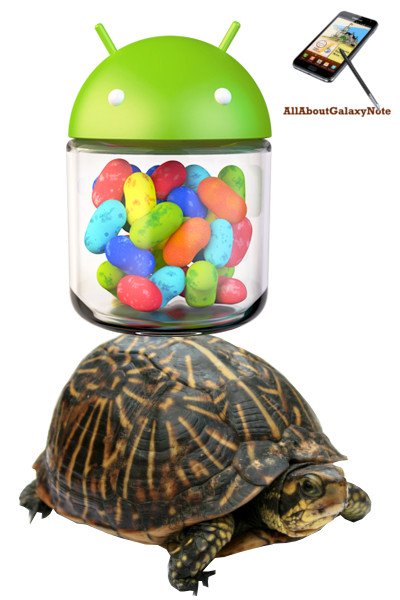
However, some users reported serious slowness issues after the Jelly Bean update in their Galaxy Notes. It seems the Project Butter is nothing, or Samsung stole our butter.

What are the causes, and what are the solutions?

First, Galaxy Note is powerful enough for running Jelly Bean smoothly. 1GB RAM, and dual core 1.4GHz Exynos 4 Dual 4210 chip are still decent hardware specifications even after1.5 years. A lot of middle range Jelly Bean handsets has far less powerful hardware specifications.

So, do not suspect your hardware. Jelly Bean is not hungry for hardware. Any hardware that can run Ice Cream Sandwich should meet the requirements of Jelly Bean. A lot of manufactures do not give Jelly Bean update simply because  they do not want to put more resources on an old model. In this sense, Samsung did an excellent job.

The slowness problem in Jelly Bean update lies on the update itself. When you update the system, most of your old settings will be kept, some are necessary, some are unnecessary . Some of these settings are fully compatible with Jelly bean; some are compatible  but with degraded performance. For the known incompatible settings, the update will handle them. The biggest issue is that some old settings are not compatible to the new OS/ROM, but it is unknown yet.  Therefore, for the slowness caused by such problematic settings, a factory reset will solve the issue.

Please be careful when performing the  factory reset because it will erase your internal storage. You need backup all your data in the internal storage, including your contacts and messages. Apps can be re-installed, but the settings will be gone. If you have rooted your phone, you can use Titanium Backup  to …

Read the full post

Filed Under: Galaxy Note Guides Tagged With: Android, Android 4.1, Android 4.2, app, Autorun Manager, backup, cahe, Carbon, Exynos, factory reset, galaxy note, Ice Cream Sandwich, Jelly Bean, Kies, OS, Project Butter, RAM, reset, samsung, TouchWiz, update

Top 12 new features you should try after getting Jelly Bean 4.1 update for Galaxy Note

By Galaxy Note 14 Comments · First published on: April 1, 2013 · Last Modified on: August 14, 2019

jelly-bean-update-for-galaxy-noteJelly Bean 4.1 update has been available in more and more regions since February. Now our almost 1.5-year-old Note gets a new life again after the Ice Cream Sandwich update last year.

If the rumor can be trusted (and it is usually can be trusted), Galaxy Note will get Jelly Bean 4.2 update this year as well. Even better news for Galaxy Note 2 owners, Key Lime Pie (aka, Android 5.0) update will very likely be available for your Note 2. Well done Samsung!. Now Samsung is only second to Google in providing an update for their Android handsets.

Last November, we list top 10 expected features in this Jelly Bean update for Galaxy note. After testing the update recently, we found all features mentioned except Airview were included in this update.

Some of these new features and improvements are part of Jelly Bean update, for example, Google Now and popup browser. Some are Samsung’s extension or exclusive apps, for example, multi-window, Paper Artist,  and easy clip.

In this post, I will share with you 12 must-try new features in this Jelly Bean 4.1 update in your Galaxy Note. All these features are already available in Galaxy Note 2, Galaxy Note 8.0  and Galaxy Note 10.1. So, if you own Galaxy Note 2, Note 8.0 or Note 10.1, you can also try all these features out of the box.

1.  Google Now (part of Jelly Bean)

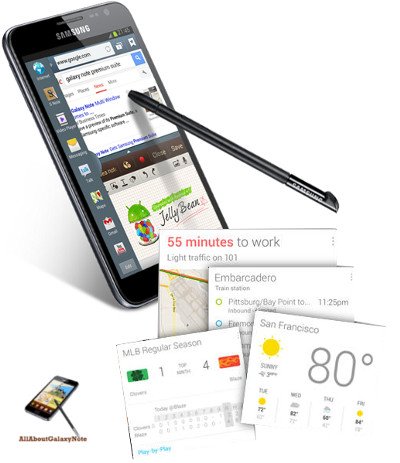
Google Now is the killer feature of Jelly Bean. It was officially unveiled in Google I/O 2012. With Google now, you become the master, not the slave of your smartphones. Google Now essentially digs all your info in your Google accounts, then predicts what info you may need before you ask. The info is presented in “cards”, which are presented once you start Google Now. In Jelly Bean 4.2, more cards will be available.

Of course, you can also use Google Now as knowledge navigator: simple ask questions, Google Now gives you results in natural language. It works far better (not so arguable) than Siri in iPhones.

To …

Read the full post


Filed Under: Galaxy Note Guides, Galaxy Note News, Galaxy Note Reviews Tagged With: Android, Android 2.3, Android 4.0, Android 4.1, Android 5.0, blocking mode, camera, contextual filename, contextual tag, galaxy note, galaxy note 10.1, galaxy note 2, Google Now, GPS, Jelly Bean, Key Lime Pie, multi window, notification, page buddy, paper artist, photo frame, photo note, popup browser, popup note, popup play, Q Slide, quick memo, S Note, samsung, Siri, tag, update

Top 10 expected features in Jelly Bean 4.1 update for Galaxy Note

By Galaxy Note 26 Comments · First published on: November 20, 2012 · Last Modified on: September 14, 2013

jb-new-logoWe all know Samsung has been working on Jelly Bean (4.1) update for Galaxy Note, although this Korean company never officially confirm or announce this update. The information we have is the update may be rolled out as early as in December. and most users will get it in Q1/2013. There is no information on Jelly Bean 4.2 update yet.

Anyway, the waiting is almost over. Now, let’s list the top 10 anticipated features in this Jelly Bean 4.,1 update for our more-than-one-year-old Galaxy Note. For Top 10 new features in ICS update, please read this post: http://www.allaboutgalaxynote.com/top-10-new-features-in-galaxy-note-after-ics-update/ 

All these features are available on Galaxy Note 2, Galaxy Note 10.1 and Galaxy Note 8.0 already.

1. Faster, smoother, and more responsive as claimed by Google

Thanks to Project Butter, one major improvement in Jelly Bean is the performance: faster, smoother and more responsive. Of course, I guess Samsung’s TouchViz UI may degrade the performance a bit. Some carriers’ bloatware may also have negative impact on the performance.

But overall, we should notice significant performance improvement.

2. Google Now

It is a shame that Google Now has not got sufficient attention. Google Now is a true innovation on getting relevant information on a mobile device. It makes you the master, not the salve, of the information. Just as claimed by Google, Google Now gets you just the right information at just the right time. If you do not have any Jelly Bean devices now, you may get more info on the Google Now offical site

3. Multi Window

Yes, you can run two apps side by side. Although very limited apps are compatible with multi window at this time, it is a really nice feature for a 5.3″ screen. Of course, this feature is best for Galaxy Note’s bigger brother Note 10.1.

4. Offline voice typing

In Jelly Bean, a new embedded speech recognizer lets you use Voice Typing even when you don’t have an Internet connection.

5. New notification system

The notification system will have significant improvements: more info and more controls. Notifications from the …

Read the full post


Filed Under: Galaxy Note Guides, Galaxy Note News, Galaxy Note Reviews Tagged With: 4.1, air view, Android, direct call, galaxy note, galaxy note 10.1, galaxy note 2, Google Now, Jelly Bean, multi window, photo note, S Note, S Pen, smart stay, update, voice typing

Top 10 new features in Galaxy Note after ICS update

By Galaxy Note 184 Comments · First published on: July 16, 2012 · Last Modified on: September 14, 2013

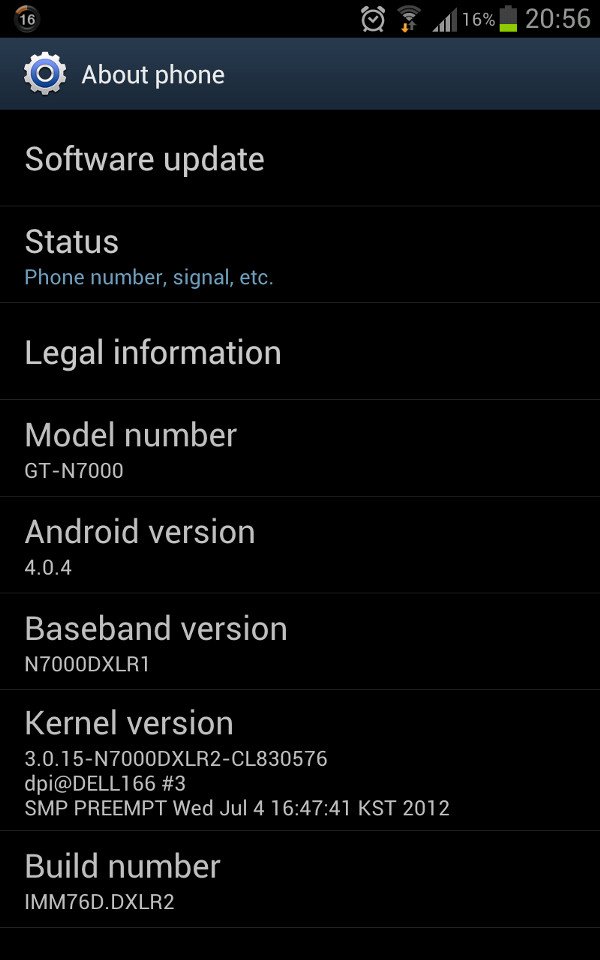
After the official release of ICS 4.0.3 update for Galaxy Note  in May and ICS 4.0.4 update last week, some users asked me what the new features are. Thanks to Samsung’s Touch Viz UI, most users will not visually find any changes after the update. Here I prepared the top 10 new features in your Galaxy Note after the ICS update.

Each update fixes some bugs and the performance should be improved, so we usually recommend users to apply the update, although some new problems may be reported, e.g. battery issues, RAM issues. Given the short lifespan (1-3 years) of samrtphones, it is impractical to wait for the perfect firmware.

In this post I will try to introduce you the features. I will create  tutorials for some of these features later.

1. Pop- up play (ICS 4.0.4 update is needed)

pop-up-play-galaxy-notePop up play was debuted on Galaxy S3  last May. In the Googl Play store, there are a few paid apps (e.g., Stick it! (Pop-up Player)) doing the similar job. What it does is quite simple, you can watch your video and use other apps at the same time. The video will be re-sized as thumbnail and you can move it to any locations on your screen. Pretty cool, right?
Of course, only the built-in video player support this. Once the video is open, you can find the re-sizing (or pop up play?) button in the top right corner. If you want to stop the video, just touch the video area and release your finger. If you want to go to full screen, you can long press the home button to get the task manager and open the video player.

Two limitations: 1). the size of the video cannot be adjusted, at lest I did not find any ways to adjust it; 2). If you want to go back to full screen, the video will be played from the beginning, not from where you stop in the pop up play mode. Thanks to julien for correcting me. (Tap the video,  it will go back to the full …

Read the full post


Filed Under: Galaxy Note Guides, Galaxy Note News Tagged With: Android, Android 4.0, browser, chrome, data usage, face unlock, galaxy note, Galaxy S3, Ice Cream Sandwich, ics, My Story, premium suite, S Note, S Pen, samsung, signature unlock, task manager, update, video player

ICS 4.0.4 update for Galaxy Note is arriving, globally

By Galaxy Note 395 Comments · First published on: July 12, 2012 · Last Modified on: September 14, 2013

ics-4.0.04-galaxy-note-300After 2 months of the initial ICS update(4.0.3) for Galaxy Note, Samsung now quietly roll out ICS 4.0.4 globally. I was a bit surprised when I saw the update notification, because I just got the information the 4.0.4 update would be roll out gradually.

Apparently, immediately after releasing the ICS update for AT&T’s version Galaxy Note on July 11, Samsung also pushed out the ICS 4.0.4 update for Galaxy Note users in German. And today, more regions including most European countries and Asian countries get the Android ICS 4.0.4 update for Galaxy Note.

Hopefully, this update will solve some of the battery issues most users experienced in GB and ICS 4.0.3.

Now, all Galaxy Note users are expecting the next major update for Jelly Bean (Android 4.1). The information we have is that Galaxy Note  and S3 will get the Jelly Bean update, probably in Q1 2013.

Also, the coming Galaxy Note 2 (with ICS pre-installed, not Jelly Bean) will be very likely announced in the IFA 2012 (August 31-Sept. 5) and start to shipping in November (roughly one year after the release date for Galaxy Note) . So, hopefully, in the Q1 of 2013, both Galaxy Note and Galaxy Note 2 will get the Jelly Bean (4.1) update.

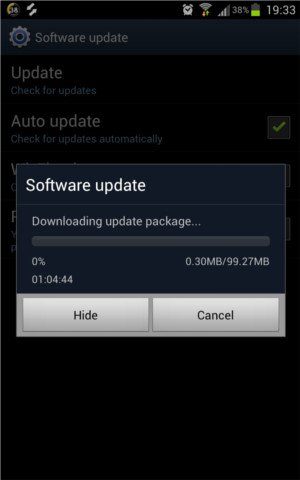
Anyway,today’s minor update (from 4.0.3 to 4.0.4)  is about 100MB.  So, please try to download through WiFi or Kies if your mobile data is very limited.

Any questions? please post the  in the comments section below or in the Galaxy Note Forums.

ics-4.0.4-galaxy-note-updated…

Read the full post


Filed Under: Galaxy Note Guides, Galaxy Note News Tagged With: Android, battery, galaxy note, Galaxy S3, ics, Jelly Bean, sam, update

Why did I get less free RAM after the ICS update in my Galaxy Note?

By Galaxy Note 28 Comments · First published on: June 28, 2012 · Last Modified on: September 14, 2013

Some users felt the sluggish immediately after the ICS update on the Galaxy Note. Some users even want to go back to Gingerbread, as commented by some users on the post of Top 10 questions on ICS update for your Galaxy Note and Ice Cream Sandwich is coming to your Galaxy Note

Of course, it is NOT necessary to go back to GB. Don’t over-react on the feeling. In this post, I will share with you how to read your available RAMs, and some tips to make your Note more responsive.

During the ICS update, for some unknown reasons, all apps will be started (we all know all apps will be re-installed by the updater, but I am not sure why they are started). So, after the update, your Note will not so responsive. A quick solution is rebooting your phone after the update. Most apps will not run automatically, so, after the reboot, only some apps started.

Now, you can check your memory (RAM) usage through Settings–Applications–Running. You should have 200-400MB free RAM. This is more than sufficient for most apps!! For example, for my note as shown below, it still have 299MB free RAM after running a few days.

But if I use the bundled Task Manager, it reported only 101MB free RAM as shown in the screenshot below. This is why a lot of  users get scared!. Do not trust any task manager or system info apps. Most of them suck. Most of apps report available RAM inaccurately.

Wait a minute, the specification says my Galaxy Note have 1GB ram, but it shows I only have about 800MB.  Is Samsung cheating us? Surely not. The about 200MB RAM is reserved by the system, mainly for GPU.  In your Galaxy Note, there is a GPU (Mali 400-MP, to be precisely) whose duty is to render whatever to be shown on the screen. All such embedded GPUs do not have “dedicated” memory: they have to share the system RAM (your 1GB RAM). As GPU need contiguous (both physical and virtual)  address, memory should be …

Read the full post


Filed Under: Galaxy Note Guides Tagged With: Android, battery, cpu, galaxy note, GPU, ics, Linux, memory, RAM, samsung, task manager, update

AllAboutGalaxyNote updated: from one-way communication to N-way

By Galaxy Note 2 Comments · First published on: June 24, 2012 · Last Modified on: September 14, 2013

galaxy-note-owners-communityYou may already notice this blog was updated this weekend: from a blog to a community.

Blogging is an effective to share experience, to discuss some specific issues with a small group peers. This is the original format of AllAboutGalaxyNote.com, powered by WordPress.

However, when a blog post has 100-200 discussions, the limitation is obvious: it is hard to navigate (although WordPress is really a solid platform). In addition, it is very hard for a visitor to start a new topic  due to the default security control in WordPress. So, an integrated forum is needed.

Sometimes, some people prefer private discussions. This is also hard to implement in WordPress.A private messaging system would be also helpful.

After some comparison, I chose BuddyPress, which is a social plugin for WordPress to extend the functions of WordPress.  So, all contents (posts and comments) are preserved. Now we get additional features with this update:

  • Private messaging (for registered users)
  • Forum
  • Chat room (coming soon)
  • Facebook integration (some users want to receive update from Facebook)
  • Google+ page (again, some users, like me, prefer receive update through RSS or Google +)

Now the communication is N-way.

Please give us feedback on any features, as well as your other suggestions.

What else do you want to have here?


 …

Read the full post


Filed Under: Galaxy Note News Tagged With: blog, chat room, community, facebook, forum, galaxy note, google plus, update, website, wordpress

How to solve battery issues after ICS update in your Galaxy Note?

By Galaxy Note 322 Comments · First published on: June 17, 2012 · Last Modified on: December 21, 2013

galaxy-note-battery-issuesUpdate: although the post was initially written for Galaxy Note with ICS, the method actually works for Galaxy Note 2, Galaxy Note 3 and many other Android devices with different versions of Android.

After ICS update, some Galaxy Note users complained about poorer battery life compared with that with Gingerbread. Initially, I thought it is a problem of “feeling” because I personally felt similar battery life after the ICS update. I was a bit disappointed because I had expected some sort of battery life improvements.

Suddenly, last week, I encountered the battery drain issue: battery just draining crazily. In one hour it can drain 3-10% battery capacity when the phone is idle. So, I know the users complaining are not alone.

As I finished my investigation and found the culprit, now I share with you how to solve battery issues on your Galaxy Note after the ICS Update. If you already have battery issues or you feel you have battery issues, you may follow my steps.

First, I installed an free app called CPU Spy (https://play.google.com/store/apps/details?id=com.bvalosek.cpuspy), which will give you the duration of  each CPU state. When your phone is idle (screen off, no music playing, no downloading), normally, your CPU should be in “Deep Sleep” state. For example, after one night, you check your CPU Spy, it should look like this.

As you can see, this is the normal situation. In the night, 95%of the time, the CPU is in deep sleep, and after 11 hours, about 6% battery was drained (I also checked emails before sleep).  If your phone does not go to deep sleep, you will find the duration on other state is higher. Very likely, you have battery drain issues if more than 20% battery are drained when you are sleeping (6-10 hours),  You probably will find far larger percentage on 200MHz state. If more than 30% are drained in one night, very likely, your phone never goes to Deep Sleep state.

So, install the CPU Spy (free), use your Galaxy note as usual for a few hours,  fully charge your phone, disconnect …

Read the full post


Filed Under: Galaxy Note Guides Tagged With: Android, app, battery, cpu, galaxy note, Ice Cream Sandwich, kernel, samsung, update, wake lock

Top 10 questions on ICS update for your Galaxy Note

By Galaxy Note 328 Comments · First published on: June 4, 2012 · Last Modified on: September 14, 2013

galaxy-note-ics-update-girl-with-phonesYes, ICS update is available for about one third Galaxy Note users. To get the most current    status on the availability of ICS update in different regions, you may check this post (I will update it once new info is available).

I received some inquiries on ICS update for Galaxy Note: some are through comment of the post mentioned above; others are through Google+.  For all these questions, I tried my best to answer them, and will continue to answer them.

I noticed there are some repeated questions, so I decided to put some frequently asked ones in this post to save reader’s time. It will not be just 10, as I will always update it if it is necessary.

Question #1. Why did some users get the ICS update earlier than me? 

Normally, firmware update must go through local testing. For regions with more users (and so Samsung collected more money there), the testing usually is faster. And Samsung also may put some sorts of priority for such regions.

The second reason is that the local carrier may want to bundle more bloatware (in addition to that bundled by Samsung). This may slightly delay the update availability. If your handset is subsidized, the carrier always tries very hard to give you more bloatware.

Another possible reason is marketing scheduling. For example, if Samsung is planning to launch Galaxy S3 in your region, usually it is not a good idea to release ICS update for Galaxy Note (another flagship product) just a few days before the launching event. In this case, the update will be normally scheduled after the event.

Question #2. Why should I update to ICS?

ICS update for your Galaxy Note is just a software update. Software generally is getting better and better: more stable, more functions, more compatible apps. Android 4.0 (ICS) is a major update merging software stacks for phone (Ginger Bread) and tablet (Android 3.0, Honeycomb). So, it is almost perfect for Galaxy Note, which is somewhere between phone and tablet.

Specifically, with ICS update for your Galaxy Note, you get

  • Latest
…

Read the full post


Filed Under: Galaxy Note Guides, Galaxy Note News, Galaxy Note Stories Tagged With: Android, Android 4.0, Android 5.0, ClockworkMod, CWM, face unlock, firmware, galaxy note, ics, Jelly Bean, Kies, My Story, OTA, premium suite, root, S Note, samsung, software, update

Ice Cream Sandwich is coming to your Galaxy Note

By Galaxy Note 399 Comments · First published on: May 10, 2012 · Last Modified on: September 14, 2013

ICS update for Galaxy Note

The long-waited Ice Cream Sandwich (aka Android 4.0) is quietly rolled out to unlocked Galaxy Notes. This is firstly reported by Devin Balentina.
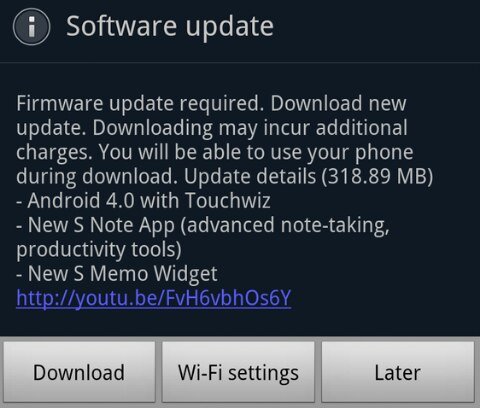
It seems only some users in Europe can update now, and none of users in Asia can get it up to now. The size of this update is reported at 318MB. The hyped Premium Suite is included.

Of course, this update is for international version, not the US (AT&T) version.

I will post my hands-on report once my Note get updated.

Did you get the update?

Update 1: The update is only available for Galaxy Note users in Europe up to now (8:50am GMT, May 11).

Update 2: Samsung Mobile Singapore confirmed the ICS update for Singapore Galaxy Note users is still under local testing. So, Singapore Note users have to wait at least a few weeks.

Update 3: Samsung Mobile Hong Kong confirmed the ICS update will be available for Hong Konmg users in May.

Update 4: Update for US (AT&T version) Galaxy Note users has not scheduled, although the leaked ROM seems close to release. But AT&T will decide when to roll it out.

Update 5: ICS update for Galaxy Note has been rolled out in India and Korea today (May 23).

Update 6:  ICS update for Galaxy Note has been rolled out in Singapore today (May 25).

Update 7:  ICS update for Galaxy Note has been rolled out in Malaysia, Hong Kong, Nepal, Bangladesh, Sri Lanka, Taiwan,the Philippines, Thailand, Indonesia and  Vietnam today (May 25)

Update 8: ICS update for Galaxy Note has been rolled out in UK today. (June 1)

Update 9:  ICS update for Galaxy Note has been rolled out in Baltic states,  Czech, Ireland, Russia, Spain and Trinidad and Tobago today. (June 8)

Update 10:  ICS update for Galaxy Note has been rolled out in Kuwait, Morocco, Portugal,  Slovenia,  United Arab Emirates today. (June 13)

Update 11:  ICS update for Galaxy Note has been rolled out in Iran. (June 14)

Update 12.…

Read the full post


Filed Under: Galaxy Note Guides, Galaxy Note News Tagged With: Asia, Europe, firmware, galaxy note, Hong Kong, Ice Cream Sandwich, ics, OS, samsung, Singapore, update

Ice Cream Sandwich for Galaxy Note leaked (for AT&T version)

By Galaxy Note Leave a Comment · First published on: April 5, 2012 · Last Modified on: September 14, 2013

galaxy-note-with-ice-cream-sandwich.jpgYes, about 5 million Galaxy Note users are patiently waiting for the update to the delicious Ice Cream Sandwich (ICS, aka Android 4.0) since last November. Initially, we heard the ICS update will be available together with Galaxy SII  in March. Later, Samsung officially announced the ICS update for Galaxy Note would be pushed to Q2, with Premium Suite specially for Galaxy Note.

Yesterday, another ICS ROM for Galaxy Note was leaked. According to Rootzwiki, the build is for AT &T version, not the international version. It has most functions (e.g., face unlocking) expected in ICS and almost all works flawlessly.

SlashGear/Android Community also put a 5-min video on Youtube:

If you have an AT & T version of Galaxy Note, and want to try the update, you may follow these steps (it may avoid your warranty and may damage your phone!!):

  1.  download the file from RootzWiki site to your Windows PC (it works on Windows PC only)
  2. Connect your Note to PC through USB
  3. Power off and boot to flash mode (press volume down and power buttons simultaneously ), then confirm with volume up
  4. Run the downloaded Odin OneClick file
  5. Follow the instructions to flash your ROM
Anyway, it seems the waiting for ICS on Galaxy Note will be over soon!

 …

Read the full post


Filed Under: Galaxy Note Guides, Galaxy Note News, Galaxy Note Stories, Galaxy Note Videos Tagged With: Android, AT&T, face unlock, galaxy note, Ice Cream Sandwich, ROM, RootzWiki, samsung, update, USB, Windows, youtube

Ice Cream Sandwich will goes to Galaxy Note in Q2 of 2012

By Galaxy Note 5 Comments · First published on: March 26, 2012 · Last Modified on: September 14, 2013

Samsung-GALAXY-Note-ics-update-android-4In February, we reported that Galaxy Note probably would get the Ice Cream Sandwich (ICS, aka, Android 4.0) update in March (together with Galaxy SII).

Obviously, Samsung missed the target. Galaxy SII users in Europe and some other regions started to receive ICS update about two weeks ago. Nothing for Galaxy Note users.

Last week, Samsung officially pushed the date to Q2. So, your waiting time should vary from one week to one week plus 3 months. Usually, when a phone manufacturer tells in Q2, it usually means June; it seldom means April.

The good news is that Samsung will bundle the S-Pen “Premium Suite” Apps together with your delicious ICS. You may watch the preview video of this  “Premium Suite” on Youtube. It is not so bad, anyway.


 …

Read the full post


Filed Under: Galaxy Note News, Galaxy Note Stories Tagged With: Android, app, Europe, galaxy note, galaxy SII, Ice Cream Sandwich, S Pen, samsung, update

Galaxy Note (and SII) will receive Ice Cream Sandwich in early March

By Galaxy Note 2 Comments · First published on: February 13, 2012 · Last Modified on: September 14, 2013

Tipster Eldar Murtazin (Editor-in-Chief of Mobile-Review.com) said Android 4.0 (aka Ice Cream Sandwich, ICS) will hit S II in March in a recent tweet.

In November 2011, Samsung confirmed  Ice Cream Sandwich would be coming to its Galaxy S II and Galaxy Note smartphones some time in 2012. In last December, the release date was further narrowed to the first quarter of 2012.

According to the information we received, Samsung is still testing the firmware update on selected handsets in Korea. The roll-out date has been tentatively scheduled in the first week of March through Kies first in Asia, immediately followed by Europe market.

Interested? wait another  two or three weeks.

 …

Read the full post


Filed Under: Galaxy Note News Tagged With: Android, Asia, Europe, formware, galaxy note, galaxy SII, Kies, samsung, smartphone, update

Primary Sidebar

The ultimate collection of narrative humor, organized by location. From the boardroom to the bedroom, never run out of things to say again

Stop Telling Boring One-Liners. Start Telling Unforgettable Stories

Site Search

RSS Android Guides

  • A Complete Guide to Android ADB Wireless Debugging
  • Android 16: the definitive guide on new features and changes
  • Master Android 15 Easter Egg Game: Landroid
  • New Features and Improvements of Android 15
  • Top 14 new features of Android 14

RSS Galaxy S25 Guides

  • All New Features of One UI 8 (Android 16) Update for Galaxy S25, S24, S23, and S22
  • One UI 8 Update Highlights for Galaxy S25, S24, S23, and S22
  • How to manage camera modes on Galaxy S25 (and Galaxy S24, S23, S22, and S21 with One UI 7 update)?
  • How to Use Galaxy S25 Camera App?
  • A Definite Guide to Galaxy S25 Flipsuit Case
  • How to Access and Customize Now Brief on Galaxy S25?
  • Meaning of Galaxy S25 Status Icons and Notification Icons
  • Layout of Galaxy S25, S25+, and S25 Ultra
  • New Galaxy AI features in Galaxy S25, S25+, and S25 Ultra
  • Top 10 new features of Galaxy S25, S25+, and S25 Ultra

RSS Samsung Galaxy S24 Guides@GGO

  • The definitive guide to One UI 7 (Android 15) update for Galaxy S24, S23, S22, and S21
  • The Definitive Guide to Galaxy AI on Galaxy S24, S23, S22, Fold 6, Fold 5, Flip 6, and Flip 5
  • Use the Light Performance Profile to Extend Battery Life and Reduce Heat on Galaxy S24, S23, S22, and S21 (all Samsung Galaxy Phones with Android 14/One UI 6.0)
  • How to adjust lock screen timeout on Galaxy S24, S23, S22, and other Galaxy devices?
  • How to use Circle to Search on Galaxy S24?
  • Meaning of Galaxy S24 status icons and notification icons on Galaxy S24, S24+, and S24 Ultra

RSS Guides for Samsung Galaxy S23

  • Explanation of all One UI 6.1 features for Galaxy S23, S23+, S23 Ultra, and other Galaxy devices
  • How to use One-Tap Editing in the Android 14 (One UI 6) update?
  • How to enable and use Auto Scan to scan documents automatically on Galaxy S23, S22, and S21?
  • New camera features in One UI 6 (Android 14) update for Galaxy S23, S22, and S21

RSS Galaxy S22 Guides

  • A Complete Guide for Android 14 (One UI 6) Update on Samsung Galaxy Devices
  • How to touch and hold to customize Lock Screen on Galaxy S22, S21, and S20 with the Android 13 update?
  • How to use Maintenance Mode on Galaxy S23, S22, S21, and S20 with Android 13 (One UI 5)?

RSS Galaxy S21 Guides

  • Top 12 new features in Android 12 update for Galaxy S21, S20 and S10
  • Android 12 update vs One UI 4.0 vs One UI 4.1: update Galaxy S21, S20 and S10 to Android 12
  • How to set and resize photo size on Samsung Galaxy S21, S20, S10, and S9 without using any third-party apps?

RSS Galaxy S20 Guides

  • The End of the Road: No Android 14 Update for the Galaxy S20
  • How to Use Enhanced Processing on Galaxy S20 with Android 11 update?
  • How to access, use, and customise widgets on Galaxy S20 lock screen and AOD screen with Android 11 update for Galaxy S20?

RSS Galaxy S10 Guides

  • End of security update for Galaxy S10, S10+ and S10e
  • Top 10 new features in Android 10 update for Galaxy S10
  • Top 5 new features added in Galaxy S10 September Update

RSS Galaxy S9 Guides

  • How to use Bixby quick commands on Galaxy S9, S9+, S8, S8+, Note 8, and Note 9 with the Android Pie update?
  • How to remap Bixby button on Galaxy S9 and S9+ after updating to Android Pie?

RSS Headphone Guide Pro

  • Sony WH-1000XM6: the Definitive Guide
  • Galaxy Buds 3 vs Galaxy Buds 3 Pro: What are the differences?
  • History of Galaxy Buds
  • Top 10 new features of Galaxy Buds 3 and Galaxy Buds 3 Pro
  • Samsung Galaxy Buds Guides
  • AirPods and AirPods Pro Guides
  • Bluetooth Codec for Wireless Headphones and Earbuds: Everything You Need to Know

RSS Google Home Guides

  • How to Use Quick Gestures on Nest Hub 2nd Gen and Nest Hub Max?
  • Understand the layout of Nest Hub (including Nest Hub 2nd Gen, Google Home Hub)
  • How to control Nest Audio?
  • Nest Audio Guides
  • Layout of Google Nest Mini (Google Home Mini 2nd Gen)
  • How to connect Google Home to a Bluetooth speaker?

RSS Moto G Guide

  • Stylus features on Moto G Stylus (all models)
  • What’s new in Moto G 2024? Moto G 5G 2024 vs Moto G Power 2024 vs Moto G Play 2024
  • Understand Moto G Model Names
  • Thank You
  • Moto G8 vs Moto G8 Power vs Moto G8 Power Lite vs Moto G Power vs Moto G Stylus vs Moto G Pro vs Moto G fast: What are the differences?

RSS Moto X Phone

  • Welcome on board, Motorola Razr!
  • Official Moto X4 User manual (User guide for Moto X 4th Gen , Moto X 2017)
  • What’s new in Android Marshmallow update for Moto X (Moto X 2015, Moto X 2014, Moto X Style and Moto X Pure edition)?

RSS Moto E Guide

  • How to use SIM cards on Moto E6, E6 Plus, E6 Play, and E6s 2020?
  • Official user manual for Moto E6, Moto E6 Plus, Moto E6 Play, and Moto E6s
  • Moto E6 vs Moto E6 Plus vs Moto E6 Play vs Moto E6s: what are the major differences?

RSS Kindle Fire For Kids Guide

  • Fire Tablet Buyer’s Guide 2025
  • How to use Writing Assist on Fire Tablet?
  • How to use Wallpaper Creator on your Fire tablet?

RSS All About Chromecast

  • How to watch YouTube without ads on Chromecast with Google TV (without YouTube Premium) and on Google TV Streamer?
  • How to use Fast Pair on Chromecast with Google TV to pair headphones and earbuds with Chromecast?
  • How to enable developer options in Chromecast with Google TV and Google TV Streamer?
  • Chromecast 4th Gen (Chromecast with Google TV) is coming!
  • How to use VLC for Android to stream local media to Chromecast?

RSS Galaxy S6 Guide

  • Android Nougat Update Guide for Galaxy S6, Galaxy S6 edge and Galaxy S6 edge+
  • Official Galaxy S6 user manual with Android Nougat update
  • Top 10 new features in Android Marshmallow update for Galaxy S6, Galaxy S6 edge and S6 edge+

RSS Galaxy S7 Guides

  • How to use Galaxy S7 multi window new features in Android Nougat udpate for Galaxy S7 and Galaxy S7 edge?
  • How to customize Galaxy S7 quick setting buttons after Android Nougat update?
  • Galaxy S7 performance mode in Android Nougat update for Galaxy S7 and Galaxy S7 edge

RSS Android Guides

  • A Complete Guide to Android ADB Wireless Debugging
  • Android 16: the definitive guide on new features and changes
  • Master Android 15 Easter Egg Game: Landroid
  • New Features and Improvements of Android 15
  • Top 14 new features of Android 14

Footer

RSS Samsung Galaxy S4

  • Samsung Galaxy S4 Manual for Verizon
  • Galaxy S4 User Manual and Handbook in English

RSS Galaxy S5 Guide

  • How to enter Galaxy S5 recovery mode?
  • How to set Galaxy S5 photo size and video size?
  • How to use Galaxy S5 camera voice control?

RSS Chinese Classical Music

  • How to Cast Chinese Music Radio to Chromecast or Google Home?
  • 十面埋伏 (Ambushed,Pipa,琵琶曲,Shi Mian Mai Fu)
  • Meet in Yurt(敖包相会, Ao Bao Xiang Hui,Folk song,民歌)
  • Purple Bamboo Melody(紫竹调, Zi Zhu Diao,Yangqin,扬琴)

RSS Drive In Singapore

  • Singapore ERP (Electronic Road Pricing): 6 Facts You Need to Know
  • Car Insurance in Singapore Explained
  • Top 5 rules of driving in Singapore safely and legally during COVID-19 Circuit Breaker period
  • Understand COE Price by 10 Simple Questions
  • How to convert a foreign driving license to a Singapore driving license?
  • How to get a Touch ‘n Go card as a Singapore driver?
  • What is covered in the car warranty in Singapore? What is not?
  • What is the Singapore Road Speed Limit?
  • How to register, collect and use Malaysia Vehicle Entry Permit (VEP)?
  • Why are cars in Singapore so expensive?

RSS Neato XV Owners

  • Neato XV Revival Guide: Repair, Hack & Restore (The 2026-2027 Edition)
  • The Scavenger’s Guide: How to Buy “Broken” Neato XVs for $20 (And Fix Them)
  • 3D Print Your Own Spare Parts: The Neato XV STL Guide
  • Stop Guessing: How to Use NeatoControl to “X-Ray” Your Robot
  • The Forbidden Upgrade: Neato Firmware Update to Vorwerk VR100 (Offline Guide)
  • The Vault: Neato XV & Vorwerk VR100 Software Repository
  • Neato Charging Station Blinking Green? The $2 C10 Capacitor Fix
  • Neato Error 3000 Fix: Lidar Motor & Belt Replacement Guide (XV-21, XV-15, XV-13, XV-11)
  • The Battery Dilemma: How to Double Your Neato XV’s Runtime (NiMH vs. Lithium)?
  • Why the “Ancient” Neato XV is Better Than Modern Robots (In 2025 and 2026)

RSS Free Hosting Answers!

  • How to connect to PPTP VPN server from a Windows machine (Windows 7 as an example)
  • How to create a 404 page?

© 2012–2026 · AllAboutGalaxyNote.com is community for Galaxy Note owners! · Hosted by PTRHosting · Powered by Genesis framework for WordPress
Galaxy Note tips, tricks, how-to guides and user manuals for all Galaxy Note devices. S Pen guides and S Note guides.

Disclaimer: Samsung, Galaxy, Galaxy Note, Galaxy NoteII, Galaxy Note 3, Galaxy Note 4, Galaxy Note 5, Galaxy Note 7, Galaxy Note 8, Galaxy Note 9, Galaxy Note 10, Galaxy Note 10.1, Galaxy Note 10.1 2014 edition, Galaxy Note 8.0, Galaxy Note Pro and Galaxy Note Edge are trademarks of Samsung . This website is NOT affiliated with Samsung in any way. All the information provided on this website is provided on an "as is" and "as available" basis and you agree that you use such information entirely at your own risk.

Add Galaxy Note Tips & Tricks to your Homescreen!

Add
We use cookies to give you the best online experience. By using our website you agree to our use of cookies in accordance with our cookie policy.