You are browsing the archive for RAM.

Who stole my butter? Solving slowness probelms in Galaxy Note after Jelly Bean update

April 9, 2013 in Galaxy Note Guides

slow-jelly-beanJelly Bean 4.1 updated for Galaxy Note has been rolled out in phases since February 2013. This update brings Galaxy Note owners many excited improvements, new features and apps. Some of the new features were explained in  the Top 12 new features you should try after getting Jelly Bean 4.1 update for Galaxy Note.

However, some users reported serious slowness issues after the Jelly Bean update in their Galaxy Notes. It seems the Project Butter is nothing, or Samsung stole our butter.

What are the causes, and what are the solutions?

First, Galaxy Note is powerful enough for running Jelly Bean smoothly. 1GB RAM, and dual core 1.4GHz Exynos 4 Dual 4210 chip are still decent hardware specifications even after1.5 years. A lot of middle range Jelly Bean handsets has far less powerful hardware specifications.

So, do not suspect your hardware. Jelly Bean is not hungry for hardware. Any hardware that can run Ice Cream Sandwich should meet the requirements of Jelly Bean. A lot of manufactures do not give Jelly Bean update simply because  they do not want to put more resources on an old model. In this sense, Samsung did an excellent job.

The slowness problem in Jelly Bean update lies on the update itself. When you update the system, most of your old settings will be kept, some are necessary, some are unnecessary . Some of these settings are fully compatible with Jelly bean; some are compatible  but with degraded performance. For the known incompatible settings, the update will handle them. The biggest issue is that some old settings are not compatible to the new OS/ROM, but it is unknown yet.  Therefore, for the slowness caused by such problematic settings, a factory reset will solve the issue.

Please be careful when performing the  factory reset because it will erase your internal storage. You need backup all your data in the internal storage, including your contacts and messages. Apps can be re-installed, but the settings will be gone. If you have rooted your phone, you can use Titanium Backup  to backup and restore almost everything. If your phone is not rooted, you may try Carbon to backup and restore your apps. You may check this tutorial on how to use this app.

Of Course it is a good idea to use Kies to backup  all supported items (contacts, messages, s notes, photos…) to your PC. After resetting, you can restore the backup.  But you should never rely on Samsung’s Device backup. It is not reliable based on my personal usage.

Sometimes, the slowness is due to insufficient available RAM. Yes, I just said our Galaxy Note has sufficient RAM (1GB)  for Jelly Bean. Even you add up all Samsung’s TouchWiz, and all bloatware from Samsung and from your local carriers, the 1GB RAM (800-900MB accessible) should be able to handle all apps easily. So, why is there this  insufficient RAM issue?

As discussed in Why did I get less free RAM after the ICS update in my Galaxy Note? Android is very efficient in memory management. The RAM in our Note has 4 portions: reserved, used, cached, and available.  Reserved part is for system devices, e.g., GPU, in this Jelly Bean update, it is about  130-140MB. So, about 860MB is available for Android, and all stacks over it. Among this 860MB, Jelly Bean actually only require less than 200MB, slightly more than Ice Cream Sandwich. The TouchWiz UI (aka Samsung’s skin) is over-bloated, and needs about 200MB. This implies users get more than 400MB for their apps. This is more than enough for any app in the Play Store.

But in our Galaxy Note, there are some bundled apps (bloatware) from Samsung and local carriers, e.g, Yahoo Finance, Learning Hub, always running because these apps mark themselves as essential (it will restart itself if you kill them use task manager), although they are not essential.

An app can also listen to reboot or start services, and therefore launches itself when you reboot your phone. So, immediately after you reboot your Galaxy Note, if your Note uses more than 600MB RAM, you may have RAM issue with apps. Your Note may be sluggish gradually. You can read the RAM info in any task manger or through Application Manager–running. If this happens, it simply means you have too many apps either marking them as essential (usually bundled ones) or trying to auto-restart themselves. You should check the RAM before using any other apps except task manager. Only check this immediately after rebooting.

So, the solution for the slowness problem caused by insufficient available RAM includes:

  1. disabling some unnecessary bundled apps (of course, if your Note was rooted, you can uninstall them). You should be very careful and only disable the apps that you are not going to use. This can be done in Application Manager–all. For each apps, you can choose disable. If there are updates installed, you need uninstall the update first, then to disable.
  2. preventing some apps to start automatically. You can go to Application  Manager–downloaded. For each app,  you can choose “force stop” if it is not grayed out. During the Jelly Bean update process, the updater actually marked all old apps to start automatically! This was done in the optimizing apps stage in the updating process.  Force stop may be not consistent (depending on app). So, a more powerful approach is to use some autorun manager. For non-rooted phones, you may try an app called Autorun Manager (in basic mode).


To sum up, if you feel your Galaxy Note is getting slower after the Jelly Bean update, you may try:

  • Step 1: Back up all important data in the internal storage. You may use Kies for some files, contacts, S Notes, messages, photos, and Carbon for app settings. Make sure the backup is in a safe place.
  • Step 2.: Perform a factory reset (settings–backup and reset)
  • Step 3: Disable some unnecessary bundled apps;
  • Step 4: Reboot and monitor the RAM usage. The used RAM  immediately after reboot should be less than 600MB.
  • step 5: Re-install backups from Kies
  • Step 6: Re-install apps one by one  from Play Store.
  • Step 7: Reboot
  • Step 8: Force stop all downloaded apps,
  • Step 9: Install Autorun Manager, and disable most apps in the list (in the Basic Mode)
  • Step 10: Reboot and check.

Is the slowness problem in your Galaxy Note solved? If not, post your questions in the comments box below of discuss it with other Galaxy Note owners in Galaxy Note discussion forum.


Galaxy Note 2: the first Jelly Bean phone will reach your hands as early as this October

August 30, 2012 in Galaxy Note News, Galaxy Note Reviews

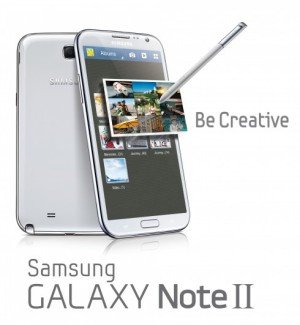
GALAXY-Note-IIAs rumored  (or expected), Samsung announced the second generation of Galaxy Note, Galaxy Note 2, at IFA 2012 yesterday. Now, the first Jenny Bean(out of box, not through update) phone.

So, here is a short list of changes (from Galaxy  Note to Galaxy Note 2):

  1. Jelly Bean  (aka, Android 4.1), vs Ginger Bread (Android 2.3). So Galaxy Note is the first Jelly Bean phone.
  2. 5.5 inch display, vs 5.3 inch
  3. 16:9 ratio (1280*720, HD), vs 16:10 *1280*800, WXGA)
  4. Quad core 1.6GHz CPU, vs dual core 1.4GHz or 1.5 GHz
  5. 2GB RAM, vs 1GB RAM;
  6. dimension: 146.9 x 83 x 9.7 mm, vs 151.1 x 80.5x 9.4mm
  7. 3100mAh battery, vs 2500mAh
  8. NFC is included, vs optional
  9. Bluetooth 4.0, vs 3.0
  10. New S Pen, longer, thicker
  11. New feature: Screen Recorder (record a whole sequence of actions taken on their screen). most useful!!!
  12. New feature: Popup Note (open an S Note instantly as a pop-up window anywhere on the screen)
  13. New feature: Quick Command ( quickly activate frequently used apps with the S Pen)
  14. New feature: Easy Clip (quickly outline and crop certain kinds of content on the screen)
  15. New feature: Idea Visualizer ( provides illustration images that match the handwritten keywords), too fancy!!
We hope Samsung will port some of these features into Galaxy Note!!!
The shipment will start from October. So, just wait one month, you may start to try.
What do you think about this new generation of Galaxy Note?
Here is the full press release. For your reading pleasure, I quote it below.
Be Creative, Be Expressive with the GALAXY Note II
August 29,  2012


The most powerful smartphone sparks everyone’s creative inspirations
BERLIN, Germany - August 29,  2012 - At the Samsung Mobile Unpacked event held today at IFA, in Berlin, Samsung introduced the GALAXY Note II, a whole new level of innovation for the GALAXY Note category. The new Samsung GALAXY Note II enables unique experiences in personalized and expressive content creation, making it the ultimate smartphone for on-the-go creativity.


“Last year at IFA, we launched the GALAXY Note, which opened a new category of smart mobile devices. This year, again at IFA, I am proud to announce the GALAXY Note II, which will encourage users to ‘unleash their inner creativity.’ With a perfect viewing experience and unique and differentiated features, users can discover information and capture their ideas faster, express thoughts freely and manage tasks more efficiently. For anyone who wants to be creative, expressive and unique, the Samsung GALAXY Note II will be the ideal device, allowing users to live a life extraordinary,” said JK Shin, President of IT & Mobile Communications Division at Samsung Electronics.


Since the first introduction of the GALAXY Note category, Samsung has continued to enhance and expand the GALAXY Note product experiences. In May 2012, Samsung introduced ‘Premium Suite,’ a software upgrade which provided enhanced user experiences. With the Ice Cream Sandwich OS upgrade, Samsung offered innovative new features such as Shape Match and Formula Match, providing a new way for organizing and expressing ideas in their personal and professional life. Also in August, Samsung expanded the category further with the GALAXY Note 10.1, which has a 10.1-inch large screen, a Multiscreen feature for the ultimate multitasking, and enhanced features for users’ productivity, creativity and learning abilities. With further enhancements, Samsung GALAXY Note II will help users unleash their inner creativity by letting them discover information faster, capture ideas, and express them in a more organized and efficient manner.


Perfect viewing experience


The GALAXY Note II features a 5.5” (140.9mm) HD Super AMOLED screen, providing breathtaking visuals and crystal clear detail. Its 16:9 screen ratio ensures an immersive and enriched cinema-like video viewing experience, perfect for watching HD videos on-the-go. Its larger screen allows users to see content clearly and vividly, with much enhanced readability. In addition to the stunning content consumption experiences on a larger screen, users will also be able to accomplish more tasks efficiently and create content freely on-the-go, as the GALAXY Note II comes with a thinner and portable body.


Easy multitasking


Air View allows users to hover with the S Pen over an email, S Planner, image gallery, or video to preview the content without having to open it. This feature enables users to quickly search and see more information in one view without screen transitions.


Thanks to the breadth of the GALAXY Note II’s amazing viewing experience, a feature called Popup Note extends the concept of Popup Play, which lets users open an S Note instantly as a pop-up window anywhere on the screen. For example, when a user pulls out the S Pen during a phone call, the S Note application automatically pops up on the screen, allowing users to jot down a quick note.


In addition, the device’s new gesture pad feature, called Quick Command, lets users quickly activate frequently used apps with the S Pen. The command pad appears when a user just swipes upward on the screen with the S Pen button pressed. Users can quickly send an email, make a call, or search a location as they draw pre-registered marks on the command pad or register a unique mark to allow for quick and easy access.


Furthermore, users will be able to share their experiences with others quickly and easily using Screen Recorder. It allows users to record a whole sequence of actions taken on their screen — a demonstration of how to use an application, for example — and then share it with friends for comment, or just for fun.


Amazing expression tools – Advanced S Pen & S Note


The new S Pen is longer, thicker and ergonomically designed for the perfect grip. Therefore, it provides a more precise, comfortable, and natural writing and drawing experience.


The S Pen’s advanced features also provide enhanced capabilities to capture ideas and inspirations instantly, and to combine handwriting with any digital content directly on the screen. By simply pressing the dedicated S Pen button, the S Pen magically recognizes that users want to clip or edit the selected content on the screen. The Easy Clip feature allows users to instantly outline and crop any content on the screen in any shape to save, share or paste. Once done cropping the image, users can freely edit the cropped content through coloring, shading, or their own personal handwriting. It is quick and easy.


Another amazing expression feature called Idea Visualizer allows users to easily add illustrations by handwriting keywords on the S Note. It provides illustration images that match the handwritten keywords. It’s a fancy illustration match function that will allow users to express, organize and visualize ideas in a more innovative and creative way. Users can even customize and add in their own illustrations library.


Powerful Performance


Powering content creation, sharing and multitasking capabilities, the GALAXY Note II comes with the latest hardware technologies. A mighty 1.6GHz Quad-Core processor and HSPA Plus or 4G LTE connectivity delivers easy multitasking, lightning-fast screen transitions, powerful browser performance, and minimal app load time. The GALAXY Note II is powered by Android™ 4.1, Jelly Bean. This brings stunning graphical capabilities and an upgraded Google Now service, including new features such as contextual search, to the GALAXY Note II. The memory options are 16 GB, 32 GB, and 64 GB with an expandable micro SD memory slot. Thanks to a 3,100mAh battery, users can enjoy multimedia content, always be productive on the go, and capture ideas whenever, wherever without suffering from power limitation.


The GALAXY Note II comes with an 8 megapixel rear-facing and 1.9 megapixel front-facing camera with HD video recording. The camera has great features like Buddy Photo Share, Burst Shot and Best Photo, which were introduced on the GALAXY S III earlier in the year. In addition to that, the GALAXY Note II features a unique camera function called Best Faces. Best Faces allows users to choose the most preferred face or pose of each person from group portrait photos. Users can also personalize photos by leaving handwritten notes on the backside of a photo using the S Pen. Handwritten Photo Notes can be shared with others in jpg format.


Available in Marble White or Titanium Gray color options, the Samsung GALAXY Note II is set to launch in October starting in major European, Asian, and Middle East markets.


The Samsung GALAXY Note II will be on display at the Samsung booth # 20 at IFA 2012 from Aug 31 through Sep 5.


The full press release can be found here.


Why did I get less free RAM after the ICS update in my Galaxy Note?

June 28, 2012 in Galaxy Note Guides

Some users felt the sluggish immediately after the ICS update on the Galaxy Note. Some users even want to go back to Gingerbread, as commented by some users on the post of Top 10 questions on ICS update for your Galaxy Note and Ice Cream Sandwich is coming to your Galaxy Note

Of course, it is NOT necessary to go back to GB. Don’t over-react on the feeling. In this post, I will share with you how to read your available RAMs, and some tips to make your Note more responsive.

During the ICS update, for some unknown reasons, all apps will be started (we all know all apps will be re-installed by the updater, but I am not sure why they are started). So, after the update, your Note will not so responsive. A quick solution is rebooting your phone after the update. Most apps will not run automatically, so, after the reboot, only some apps started.

Now, you can check your memory (RAM) usage through Settings–Applications–Running. You should have 200-400MB free RAM. This is more than sufficient for most apps!! For example, for my note as shown below, it still have 299MB free RAM after running a few days.

ram-reported-by-system

This shows the actual available RAM.

But if I use the bundled Task Manager, it reported only 101MB free RAM as shown in the screenshot below. This is why a lot of  users get scared!. Do not trust any task manager or system info apps. Most of them suck. Most of apps report available RAM inaccurately.

ram-reported-by-task-manager

This shows why most Task Manager suck!

Wait a minute, the specification says my Galaxy Note have 1GB ram, but it shows I only have about 800MB.  Is Samsung cheating us? Surely not. The about 200MB RAM is reserved by the system, mainly for GPU.  In your Galaxy Note, there is a GPU (Mali 400-MP, to be precisely) whose duty is to render whatever to be shown on the screen. All such embedded GPUs do not have “dedicated” memory: they have to share the system RAM (your 1GB RAM). As GPU need contiguous (both physical and virtual)  address, memory should be reserved.  This is something similar (but not identical)  to your integrated graphics card on your PC (if you still have such a PC).

Your Android kernel (ICS) and drivers will use about 200MB RAM. Another about 200MB were used by your launcher and other bundled apps (both essential and bloated). So, after rebooting your Galaxy Note, you should have 300-500MB available RAM. Don’t use any task manager to check!! 

Android (and its father or mother? Linux)  is very efficient in memory management. Any unused RAM is wasted!  Android caches some apps in the RAM so that when you want to launch these apps, it will be super fast because they will be loaded from memory instead of from the storage card. Most of the time, your newly closed apps get higher priority of being cached. Of course, Android will not use up all your RAM; it will always leave 100-200MB as unused in your Galaxy Note so that you can launch any apps without feeling the sluggish. If the unused RAM is not sufficient, some cached RAM will be released immediately based on priority and other factors.

So, you should never worry about RAM management in your Galaxy Note. Most task managers and RAM boosters are useless.

If you feel the phone is sluggish, the problem can be caused by some poorly-written apps or some other settings (e.g., excessive power saving settings). You can always check the running apps from Settings–Applications–Running to find out which app is hogging the resources.

As mentioned, some apps start itself automatically when you reboot your phone. If you are curious to know which apps in your phone will start automatically (usually during boot time), you can install this Autorun Manger (https://play.google.com/store/apps/details?id=com.rs.autorun). If your phone is not rooted, you can only temporally stop such apps through Settings–Applications–Downloaded–choose the app–Force Stop. Anyway, for most users, this is NOT necessary.

Ok, a few tips to make your phone more responsive:

  • Turn off Power Saving. Based on my personal experience, the Power Saving can extend the battery life only about 10%, and your CPU seldom goes to 1.4GHz with Power Saving on. I tested for a few days. When it is off, my Note became far more responsive,and may battery is still enough for my daily use. Occasionally I still turn it on if I know I need user it for longer time on some days.
  • Turn off Screen Rotation. You can always turn it man when you need it, e.g., browsing web pages, watching videos.
  • Turn off Touch sounds and vibrate on touch. You can do this from Settings–Sound–System

What are your tips to make your Galaxy Note more responsive? Or do you have comments to share with us?