You are browsing the archive for Android 5.0.

Top 12 new features you should try after getting Jelly Bean 4.1 update for Galaxy Note

April 1, 2013 in Galaxy Note Guides, Galaxy Note News, Galaxy Note Reviews

jelly-bean-update-for-galaxy-noteJelly Bean 4.1 update has been available in more and more regions since February. Now our almost 1.5-year-old Note get a new  life again after the Ice Cream Sandwich update last year.

If the rumor can be trusted (and it is usually can be trusted), Galaxy Note will get Jelly Bean 4.2 update this year as well. Even better news for Galaxy Note 2 owners, Key Lime Pie (aka, Android 5.0) update will very likely be available for your Note 2. Well done Samsung!. Now Samsung is only second to Google in providing update for their Android handsets.

Last November, we list top 10 expected features in this Jelly Bean update for Galaxy note. After testing the update recently, we found all features mentioned except Airview were included in this update.

Some of these new features and improvements are part of Jelly Bean update, for example Google Now and popup browser. Some are Samsung’s extension or exclusive apps, for example, multi-window, Paper Artist,  and easy clip.

In this post, I will share with you 12 must-try new features in this Jelly Bean 4.1 update in your Galaxy Note. All these features are already available in Galaxy Note 2 and Note 10.1. So, if you own Galaxy Note 2 or 10.1, you can also try all  these features out of box.

1.  Google Now (part of Jelly Bean)

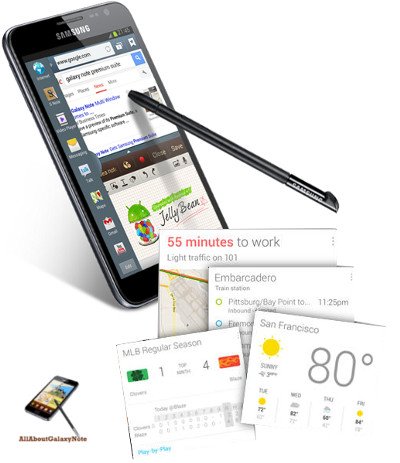
Google Now is the killer feature of Jelly Bean. It was officially unveiled in Google I/O 2012. With Google now, you become the master, not the slave of your smartphones. Google Now essentially digs all your info in your Google accounts, then predicts what  info you may need before you ask. The info is presented in “cards”, which are presented  once you start Google Now. In Jelly Bean 4.2, more cards will be available.

Of course, you can also use Google Now as knowledge navigator: simple ask questions, Google Now gives you results in natural language. It works far better (not so arguable) than Siri in iPhones.

To launch Google Now, you can long press menu (left) key. You can also long press Home button, then choose “g”. For Note 10.1, press the Home button (software, as there are no physical buttons) then swipe up.

2. Blocking mode

You can mute incoming calls, sound and notifications, if the blocking mode is turned on. Just like DnD in iOS 6, you can configure the timing and add an exception list.

Just like DnD on iOS 6, Blocking mode has an exception list where you can add some contacts that won’t be affected by its restrictions.

Blocking mode can be activated/deactivated from notification panel. You can also activate/deactivate it, or customize it (e.g., set schedule, or add exception list)  from settings–blocking mode.

3. Multi-window

You can run two apps side by side when the multi-window is turned on. At this time, only selected apps support this feature. In the right side of your phone, there will be a blue multi-window panel handle,from which you can pull out the panel containing all supported apps. Simply drag two apps one by one, each app will take half of the screen.

When in multi-window mode, you can re-size each app, or make one of the app take the full screen. But what you cannot do is to overlap these apps as in Q Slide in Optimus G. Q Slide is similar to popup (browser, video, note) in Galaxy Note mentioned below.

Multi-window can be activated/deactivated from notification panel (by default). You can also activate/deactivate it from settings–display.

4. Popup browser (part of Jelly Bean)

Popup browser allows you to open a link in a popup window. You can move the popup browser on the screen, but you cannot re-size it (at least we did not figure out how to do it), or push it back unless you close it. Of course, you can tap the button in the top left  corner to maximize it. This essentially change the popup browser to the in-stock one.

This popup browser is part of Jelly Bean and there is no corresponding app for it. The only way to invoke it is to open a link in an app (except in other browsers) and then the system will give you the option to use popup browser or any other browsers. Of course, you can make it (or any other browsers)  default if you want. Then you will not see the options window. If you want to get this option window back, you have to clear the defaults for the browser chosen in applications manager.

There are two other popup apps you may already know. One is the popup note (it is called quick memo in Ginger Bread, and ICS). At any time, you can press down the S Pen button, and double tap the screen, a popup note will be available. This is very useful when you want to write down something during a call. You can re-size the window and move it around.

Another one is popup video play debuted in the ICS update in some regions as explained in this post. The in-stock video player can be re-sized and move around. You can  also switch to other apps and keep the video playing.

5. Offline voice typing (part of Jelly Bean)

The new embedded speech recognizer lets you use Voice Typing even when you don’t have an Internet connection. You need download about a 15MB file for each language. Of course, this offline version is not as good as the cloud version, but it is surely usable.

You can change the settings from Settings–Language and input–Google voice typing.

6.  Expandable notifications and controllable notifications from apps  (part of Jelly Bean)

The notification panel can now expand to show you more info, for example, a portion of your incoming email, rather than just the number of emails waiting for you in the inbox. Moreover. notifications from the same application will be  grouped together, and the first item is automatically expanded. You can pinch notifications to expand or collapse them.

Another nice feature related to notification is that you can disable notifications from any apps. In the Settings–Applications manager, you can disable notification for any apps.  You can  also identify the apps by long tap the notification. Then you can disable the notifications for this app if the notifications are annoying, but you need keep this app.

7. Easy clip

Press down  the S Pen button, draw any closed shapes on the screen. The closed region can then be used as an image in  other apps. You can paste this clipped image to the scrapbook , to S Note, to email, to Facebook… This is very handy for saving or sharing.

8. Contextual filename for your photos

When GPS tagging is on,  you can adjust the file name based on contextual information such as your current GPS location.  You can also add weather tag, person and date of course. Before shooting photos, you can go to camera settings to enable GPS tag and contextual filename. Once in the gallery (the in-stock one), you can add more tags after tapping the menu key..

9. Photo Note

You can simply put handwriting notes on the back of your photos! You can access this function from the Gallery app. Once a photo is loaded, tap the menu key, you can  then select photo note to write on the back of the photo.

Similarly, You can also add frames to your photos as well.  You can also write something anywhere on the photo or the frame. The framed photos will then be saved in /storage/sdcard0/pictures/photo frame folder.So  a new photo (re-sized and in PNG format)  is saved, and you can use this framed photo on other systems. This is different from photo note, which is only readable for Samsung’s Android phones.

10.  Paper Artist

 Paper Artist is an app exclusively developed for Samsung (by JFDP-Labs). It was first introduced in Galaxy Note 2. Paper Artist essentially is an image editor, but with very special tools and effects. With this app, your Note turns you into an artist, at least  you will get this feeling.

You can launch this app just as other apps. Alternatively, you can access this app from your gallery. Tap the menu key  when a photo is opened, select edit, and an option for Paper Artist will be available.

11. Improved S Note

S Note is simply getting better in this update. More contextual options are added and it likes the S Note in Note 2. Another notable new feature is added sketch effects for any images in your S Note.

12. Page buddy

Page buddy essentially display contextual popup widget depending on the accessories connected or  removed. For example, when a headset is inserted, a page with music player widget and video player widget will pop out. You can enable or disable this function from Settings–Display-Page buddy.

Unfortunately, unlike the page buddy in Note 2,  there is no S Pen page, because Galaxy Note does not have a sensor to detect the removing of S Pen.

Of course, there are many other new features, for example, re-sizable widget,  Smart Stay, Handwriting email and S Planner, configurable notification panel, ChatON and group play. Most Google apps were also optimized for Jelly Bean.

Any questions on Jelly Bean update for your Galaxy Note? Or any questions on these features in you Galaxy Note , Note 2 and Note 10.1? Please post in the comments section below.  You can also start a discussion in our discussion forum.


Avatar of Simon

by Simon

Is LG Optimus G Pro an Alternative to Galaxy Note 2?

March 22, 2013 in Galaxy Note Guides, Galaxy Note News

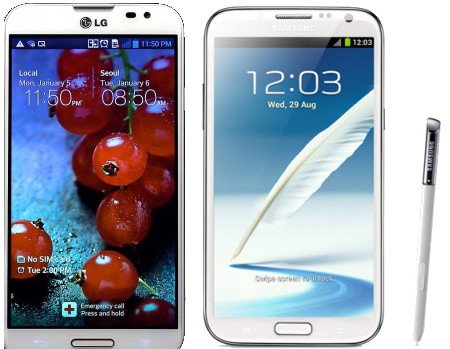
galaxy-note2-vs-lg-optimus-g-proIt is not a secret that LG wants to step into the phablet market which is dominated by Samsung’s 5.3″ Galaxy Note and 5.5″ Galaxy Note 2. The 5″ rectangle slab, Optimus Vu, and Vu 2, announced last year, failed miserably to get into this niche market.

So, this year, LG Optimus G Pro was announced during Mobile World Congress 2013. It will be released in selected regions next month. This time LG gambles on the Optimus G branding. Will it be successful?

The eye-catching feature of this phone is its 5.5″ full HD IPS display. So, the targeted competitor of Optimus G Pro is not Galaxy S3 or recently announced Galaxy S4. LG actually wants this phone to be the alternative of Galaxy Note 2.

From the timing of the announcement, it can be easily deduced that  Galaxy Note 2 is the target. By releasing a handset in the middle of Galaxy Note 2 and the coming Note 3, Optimus G Pro can get about 6-month lead in hardware specifications against Note 2.

LG recently started to know how to design a great Android phone after they worked with Google for the Nexus 4. LG then transformed Nexus 4 into Optimus G, which is the most successful Android phone LG ever made.

Design and build quality

From the exterior, Optimus G Pro likes  a sibling of Galaxy Note 2. It is totally different from Optimus Vu or  Optimus G. Physical home button and two capacitive buttons for menu and back are similarly placed like that in  Galaxy Note 2. However, Optimus G Pro has slightly smaller side bezels.

For the back, LG also abandoned  the all-glass design spotted  in Optimus G. Plastic was chosen for Optimus G Pro. The build quality is similar to Note 2.

One thing that some people may like in Optimus G Pro is the Q Button. This is a dedicated button in the left side.  You can configure any  (but only one) app for this button. Of course, you can configure it as a camera button, just like many Symbian smartphones. However, the location of t his button is annoying. You may often mistakenly press it. It would have been better if it had been placed near the bottom.

Software and skin

Both LG Optimus G Pro and Galaxy Note 2 come with Jelly Bean 4.1, and Jelly Bean 4.2 update is on the way. However, based on the  leaked updating roadmap, Samsung will also update Note 2 to Android 5.0 (Key Lime Pie) which  will surely be announced in this May during the Google I/O 2013. Based on the updating track record, this is very likely. For example, Galaxy Note was shipped with Gingerbread (2.3) in 2011, updated to Ice Cream Sandwich (4.0) in 2012, and then Jelly Bean 4.1 this year.

However., if you check the OS updating record for LG Android phones, you may know  Optimus G Pro will very likely end up with Jelly Bean 4.2.

For the skin overlay (UI),  TouchWiz  is over-bloated.  The latest version,  Nature UX, was refined and polished significantly, but surely further polishing and structural change are needed. Some changes in the UI do not improve the stock ones, and are just for the sake of change.  But when you compared it with LG Optimus UI, you will feel Samsung does a better job. The Optimus UI has some nice features, but it is clumsy and counter-intuitive. Maybe, because I get used to TouchWiz or vanilla Android.

Display

LG Optimus Pro is packed with a full HD (1920*1080) display. While Galaxy Note 2 comes with a HD display (1280*720). On the paper, LG Optimus G pro should give more sharp images. But when you compare them side by side, most people probably still prefer Samsung’s over-saturated AMOLED display because it is simply more vivid than the IPS panel in Optimus G Pro. Some may disagree. But the bottom line is that the resolution  or number of pixels does not matter; it is the contrast and brightness that matter.

The pixel density in Optimus G Pro goes to 401ppi. This is beyond the capability of human eyes to identify pixels when you hold your phone 4 inches away. For a smartphone, 300ppi is sufficient for most eyes. Because all smartphone manufacturers are crazily fighting into hardware specification race, full HD has been spotted on more and more phones, although it is just a waste on these 4-6″ screens. Galaxy Note 3 will surely join this full HD club.

Camera and video

Optimus G Pro comes with a 13MP rear camera, which is the new standard configuration of flagship smartphones in 2013. Higher pixels does not mean better images: it all depends on software. The tiny image sensor may have trouble to get enough light if more pixels are packed. This has to be mainly solved through software. But anyway, 13MP may be better than  8MP if the light is not an issue.

A nice feature packed with Optimus G Pro is the dual recording, with which you can use both cameras for one video (video in video). The announced update will bring this (dual camera)  to photos as well.  Similar  features were announced in Galaxy S4, and will go to Galaxy Note 2 in the Jelly Bean 4.2 update. So, for Galaxy Note 2 users, we have to wait a few months for these features.

Finger vs S Pen

Surprisingly, Optimus G Pro does not come with a stylus. Both Optimus Vu and Vu 2 give you a stylus. So, LG is expecting you to use fingers, instead of a stylus, on this phone.

Another reason is probably LG is not able to deliver a stylus better than S Pen. So, it is wise to omit this component.

Q Memo vs S Note

LG has Q memo for quite long time. So it is not an app specially for Optimus G Pro. But most users want to compare it with S Memo (in Galaxy Note). Q Memo is simple to use, compared with S Note in  Note and Note 2. Of course, Q Memo has less functions/features for a long note/memo.

Lacking a stylus makes the Q Memo  less useful. In Galaxy Note 2, you have more choices: when pulling out your S Pen, popup note will be available; If you need take notes for a lecture or meeting, you can use S Note.

In addition, Galaxy Note 2 has a lot of cool and useful features related to S Pen.

Q Slide vs Multi Window

Q Slide in Optimus G  Pro is similar to multi window in Note 2. But in Q Slide, the selected apps overlay other apps and you can change the transparency  of the overlayed app. In Note 2, the screen is split and you can re-size them. So, the Q Slide likes popup note with adjustable transparency and size.

Conclusion

Optimus G Pro is another over-powered (that is the reason why I skipped other hardware specifications) phone, with some innovative features.  It is a good, not great phone in this form factor.

However, lacking of a stylus and related apps makes it hard to compete against Galaxy Note 2 in this screen size, although better hardware specifications may lure some gamers.

What do you think?

Top 10 questions on ICS update for your Galaxy Note

June 4, 2012 in Galaxy Note Guides, Galaxy Note News, Galaxy Note Stories

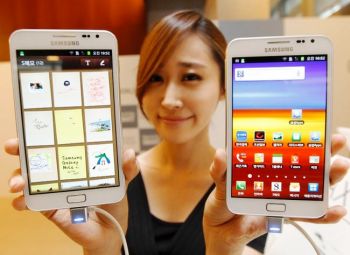
galaxy-note-ics-update-girl-with-phonesYes, ICS update is available for about one third Galaxy Note users. To get the most current    status on the availability of ICS update in different regions, you may check this post (I will update it once new info is available).

I received some inquiries on ICS update for Galaxy Note: some are through comment of the post mentioned above; others are through Google+.  For all these questions, I tried my best to answer them, and will continue to answer them.

I noticed there are some repeated questions, so I decided to put some frequently asked ones in this post to save reader’s time. It will not be just 10, as I will always update it if it is necessary.

Question #1. Why did some users get the ICS update earlier than me? 

Normally, firmware update must go through local testing. For regions with more users (and so Samsung collected more money there), the testing usually is faster. And Samsung also may put some sorts of priority for such regions.

The second reason is that the local carrier may want to bundle more bloatware (in addition to that bundled by Samsung). This may slightly delay the update availability. If your handset is subsidized, the carrier always tries very hard to give you more bloatware.

Another possible reason is marketing scheduling. For example, if Samsung is planning to launch Galaxy S3 in your region, usually it is not a good idea to release ICS update for Galaxy Note (another flagship product) just a few days before the launching event. In this case, the update will be normally scheduled after the event.

Question #2. Why should I update to ICS?

ICS update for your Galaxy Note is just a software update. Software generally is getting better and better: more stable, more functions, more compatible apps. Android 4.0 (ICS) is a major update merging software stacks for phone (Ginger Bread) and tablet (Android 3.0, Honeycomb). So, it is almost perfect for Galaxy Note, which is somewhere between phone and tablet.

Specifically, with ICS update for your Galaxy Note, you get

  • Latest Android OS optimized for the form factor of your phone
  • Premium Suite makes your Note really outstanding from other phones and tablets
  • Some cool features included in ICS: face unlock, new default font

Question #3. Will all my apps works after the update?

Theoretically, all of them should work. But some apps may actually not. So, it is a good idea to check the individual app page in the Google Play to find out whether it works on ICS  or not, or whether there are some known problems.

Normally, for apps under active development (e.g., updated at least once in last 6 months), the developer very likely has tweaked the app for ICS.

Question #4. Where is the Premium Suite? I cannot find it after the upgrade.

Premium Suite is a collection of new apps (S Note, My Story) and  enhancements to S Memo and S Pen.

After the ICS update, you can find a new app, S Note, among your apps. You can start to use it immediately.

In some regions, the My Story app must be installed manually from Samsung Apps. You can go to Samsung Apps (an app installed by default), then search “My Story”. You can then install it. When you try to open it the fist time, you need register your mobile number (an SMS with a 4-digit pin code will be sent to your mobile for verification, so make sure the country code you select is correct).

If you cannot find the app through Samsung Apps, you can also try to use Kies.

Question #5. How to get My Story app? It is supposed to be included in the Premium Suite.

See Question #4.

Question #6. Are there battery issues with the ICS update? I heard some complaints on poorer battery life and performance after the update.

Based on my personal experience, there are no noticeable difference in battery life after the ICS update. I actually had expected some improvements. For most users, it is sufficient for full day use, and you probably need charge it every night, just like me.

Actually, you may hear complaints on battery life for almost all smartphones regardless of the OS, firmware, model and the brand. Most of the time, the only solution is a replacement. I guess this is very likely hardware defects.

Of course, sometimes, some poor written apps may drain battery quite fast. But this can easily found out.

On the performance, most of the time, it is just user’s “feeling” or the slowness experienced may be just related to specific apps.

It seems after the ICS update, most apps are started automatically when you reboot your phone. So, you may try to use force stop for most of the apps or kill them with some task managers. This may make your Note more responsive. (If you can use force stop for an app, it means the app has been started. Some task managers may miss most of them, it is better to do it manually to save your battery life significantly.)

Anyway, I feel the battery life is as bad (but acceptable) as that before the update. Performance is as good as that before the update. No major improvements, and no degradation.

Update: yes, even before the update, some users already have battery issues. Please check the post How to solve battery issues after ICS update in your Galaxy Note.

Question #7. Can I easily root my Galaxy Note after the ICS update?

Please note, in most regions, rooting your Galaxy Note may void your warranty. And, no rooting method is perfect.

Yes, Samsung phones are always easy to root. After the ICS update, you can root it with CWM  (http://forum.xda-developers.com/showthread.php?t=1647148 ) or PC Odin (a bit more difficult if you never use Odin before, so I do not give your reference).

Anyway, unless you are very familiar with Android, you should not root your phone within warranty period (usually one year only) to avoid any possible issues. For most users, you don’t need root/superuser access.

Question #8. Does face unlock work well on this ICS update?

Yes, face unlock works very well on Galaxy Note. But please note, this is not a good option if security is your big concern. Password is still the safest unlock method, followed by pin code. Face unlock can be easily cheated by a photo as reported before.

Anyway, face unlock is very cool and fun.

Question #9. Why did I get the update only from Kies, not through OTA?

In most regions, the update can be obtained both through OTA and Kies. But it seems in some regions some users cannot get the update from the OTA.

The reason you cannot get the update through  OTA is mainly caused by your local vendor/carrier. Some carriers simply do not want to enable the OTA update. Another possible reason is the update server is overloaded. I also heard (unofficially) if your connection speed is regarded as too slow, you probably will not get the OTA update popup at all.

Anyway, Kies is more reliable, although sometimes is a bit slow. Familiarize yourself with Kies if you want to use Samsung phones effectively.

Question #10. Will I get Jelly Bean (Android 5.0 4.1) update for my Galaxy Note?

I contacted several Samsung offices with this question, and nobody could give any useful info. The common answer is it will be announced after Jelly Bean is officially available.

So, let me guess.

If there is no Galaxy Note 2 or some models to upgrade Galaxy Note, we will very likely get the  Jelly Bean maybe next year. The only problem is whether the 1GB RAM is sufficient or not for Android 5.0.  It seems 1GB is very likely the minimum requirement for Jelly Bean.

Updating Galaxy Note to Android 5.0 does make business sense. As the note was just release in Q4 last year, most users’ 2-year contract will only end by Q4 of 2013.The lifespan of ICS is not so long.

However, if there are something like Galaxy Note 2, then, we will definitely NOT get the official Jelly Bean update because Samsung then wants to sell more of  the new model. Just like the fate of Galaxy S. Very likely, Samsung will give you some consolations like new premium packages.

I guess Samsung was not very confident about the popularity of Galaxy Note even after the  initial release. So, they probably did not have a  plan for Galaxy Note 2.  But as the sales of Galaxy Note become far better than expected, it is very likely they started to think about a new Galaxy Note (not the Galaxy Note 10.1, which is targeted for different users.)

Anyway, there will be at least some unofficial Jelly Beans for Galaxy Note.

Do you have any other questions on Galaxy Note? Post them in comments (it won’t show up immediately, but I will receive it immediately and try to answer it ASAP).